Can I embed BookMe on my non-Zenfolio Website?
Absolutely! While each website provider is a little different, the process follows two main steps:
Copy your BookMe HTML Snippet from Zenfolio
Paste your BookMe HTML Snippet on your external website
1. Copy your BookMe HTML Snippet
- Hover your mouse pointer over the Selling button
- Click on BookMe from the dropdown menu
- Select on the Activation tab
- Then click on Embed HTML tab
- You will need to provide the URL of one of the pages you intend to embed the widget on
- Copy the provided BookMe widget embed code
- Once you've completed adding your BookMe HTML snippet to your website, remove the URL from this page
Alternatively, Click HERE to get your BookMe HTML Snippet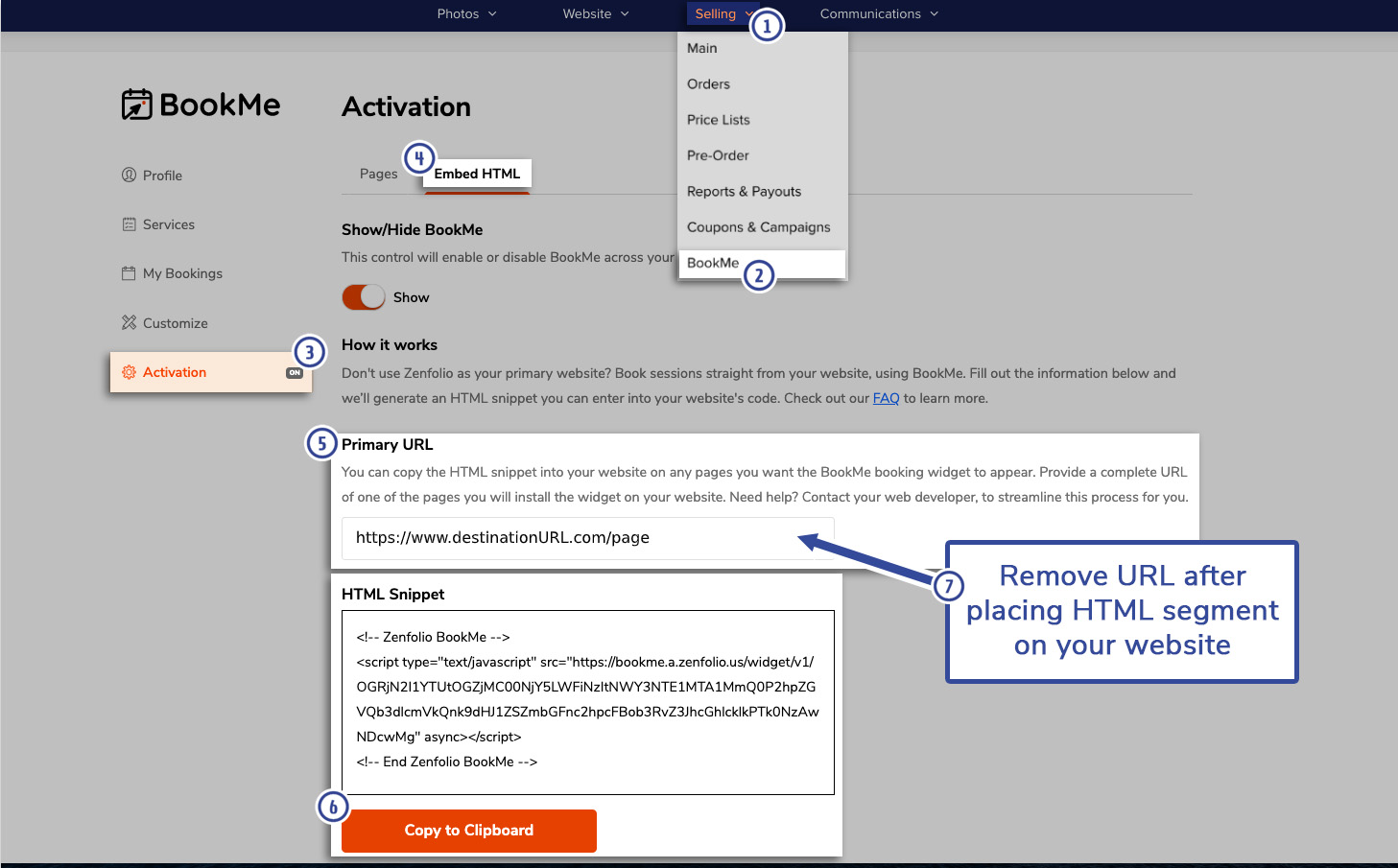
2. Paste your BookMe HTML Snippet on your external website
Click on your website builder to get instructions specific to your provider. Don't see yours listed below? Please contact your website builder directly. If you wish to share the instructions, please contact our support team and they will be happy to add them to this guide!
Squarespace
Wix
WordPress
Pixieset
Showit
Squarespace
https://support.squarespace.com/hc/en-us/articles/206543167
Add a Code Block
Edit a page or post, click an insert point, and select Code from the menu. For help, visit Adding content with blocks
Add your code in the text field.
If you're using the Code Block to display code snippets, check Display Source.
Click Apply to save your changes.
Add code
If you're using the Code Block to render code, ensure you select HTML or Markdown in the drop-down menu.
Enter or paste the code into the text field and remove the <p>Hello, World!</p> placeholder. To paste code, copy the code, then click into the field and press Ctrl + V (Windows) or Command + V (Mac).
Code Blocks set to CSS or JavaScript display code as text by default. To render CSS or JavaScript in Code Blocks, select HTML from the drop-down menu. Then, for CSS, surround the code with <style> </style> tags. For JavaScript, surround the code with <script> </script> tags.
Preview embedded code
As a security measure, sometimes your code won't appear when you're logged in, even if visitors can see it. If you can't see code you added to a Code Block, click Preview in Safe Mode to view the embedded item.
Wix
https://support.wix.com/en/article/embedding-custom-code-to-your-site
1. Go to Settings in your site's dashboard.
2. Click the Tracking & Analytics tab under Advanced Settings.
3. Click + New Tool and select Custom from the dropdown.
4. Set up your custom code:
Wordpress
Creating Code Snippets
Go to “Plugins > Add New” menu and search for “Insert HTML Snippet” plugin. Install and activate the plugin on your site. The plugin will add a new menu called “XYZ HTML” on the admin side bar.
Navigate to “XYZ HTML > HTML Snippets” and click on the “Add New HTML Snippet” button.
Provide a name for your widget in “Tracking name” box and insert your code inside the “HTML code” text box.
Click on the “Create” button to save the snippet and create a shortcode. The shortcode will look like [ xyz-ihs snippet=”Your-snippet-name” ].
Once the shortcode is created, you can pause the code from running and modify at time later. All created snippets can be seen under “XYZ HTML > HTML Snippets” menu.
You can customize the default sorting criteria and the number of widgets to be shown on the dashboard page under “XYZ HTML > Settings” menu.
Inserting on Pages and Posts
Now go to the WordPress page editor or post editor and you will see a button named “HTML” on the TinyMCE editor. Click on the button and choose the snippet shortcode you want to insert on your page or post.
Preview and publish your pages or posts to see the live result of your code snippet.
Inserting Snippets on Widget Area
Insert HTML Snippet plugin also offers a widget which can be inserted on the sidebar and footer widget area. Navigate to “Appearance > Widget” menu and drag and drop the “Insert HTML Snippet” widget to the sidebar or footer. Choose the shortcode of the required snippet and save your changes.
Pixieset
https://help.pixieset.com/hc/en-us/articles/360034392351-Adding-Custom-Header-Footer-Code
Click on the “Settings” icon at the top of the left editor panel for Settings > Advanced, or click here .
2. You should see two fields for Custom Header Code or Custom Footer Code. Simply copy & paste the code snippets to the appropriate field.
Custom header/footer code will not render in the editor view. You can click on “Preview” to see the changes or publish your site to see the changes live.
ShowIt
https://learn.showit.co/en/articles/1152605-can-i-add-custom-html-code-into-my-site-s-head-section
Inside the Showit builder, select the page name in the top left corner. If a canvas is selected it will only show canvas settings and not the page settings. To avoid this, click on the page name.
In the right toolbar, you should see an a tab for "Advanced Settings". Select it and it will reveal a box for adding Custom Head HTML.
Clicking the box will pull up a pop-up window that will allow you to paste your code. Click "Save" when finished.