When viewing the gallery thumbnails page, by default, clicking on an image will direct site visitors to that image's Photo Page.
The option is provided to disable the Photo Page and instead display the image in Dim the Lights mode.
Dim-the-Lights mode shows off your photos without any distractions. This is a great feature for portfolio presentation with large images, convenient keyboard navigation, and a menu bar for selecting favorites, downloading, or buying photos.
Please note that opening to Dim the Lights mode from a gallery thumbnails page is not available in galleries where a price list has been assigned.
Enable Dim-The-Lights when Thumbnail are Clicked
The option to disable the Photo Page and display the Dim-the-Lights Mode can be found in Customize Website View.
- In your account, go to Photos.
- Navigate to the desired Gallery under the Organizer.
- Hover the mouse pointer over Preview then click on Customize.
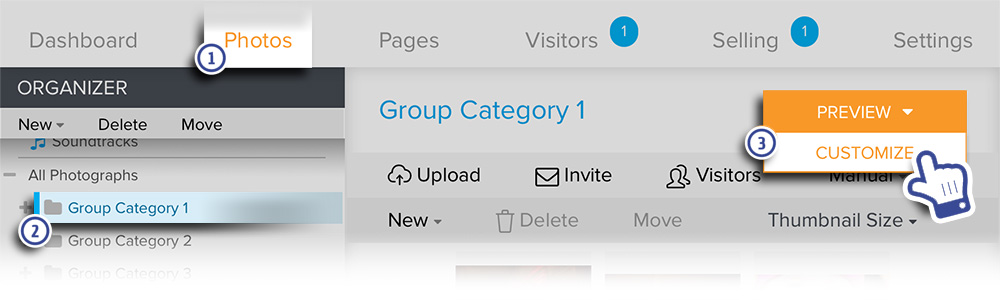
The page will refresh with Customize Website View displayed at the top, confirming that you are in the customization mode.
For Zenfolio users that signed up after May 10 2018, please see the updated instructions below
- In your account, go to Photos.
- Navigate to the desired Gallery under the Organizer.
- Click on Preview.
- In the Customize view, click on Edit
- Then choose Page from the dropdown menu that appears
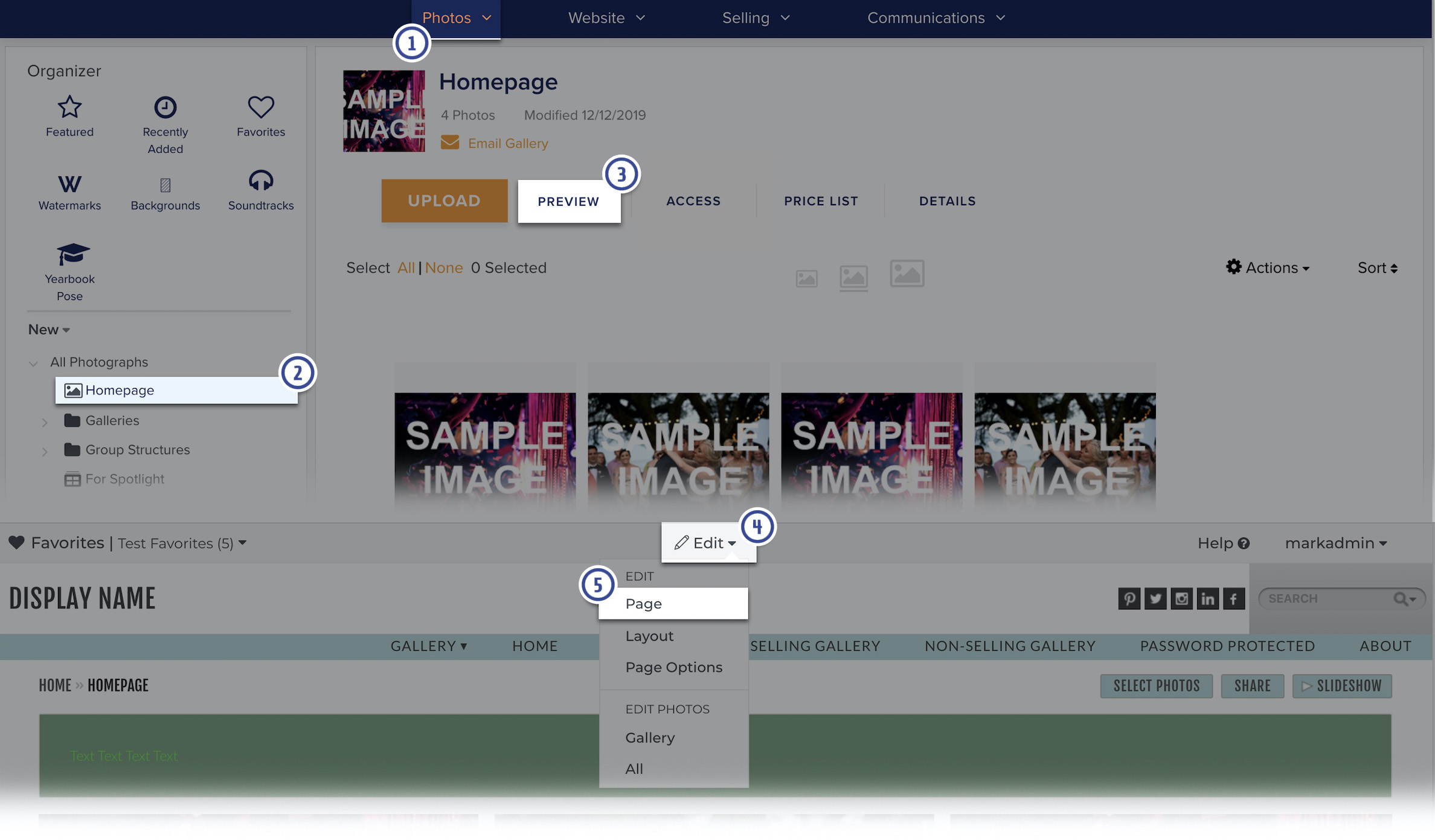
The page will refresh with customization tools displayed at the top, confirming that you are in the customization mode
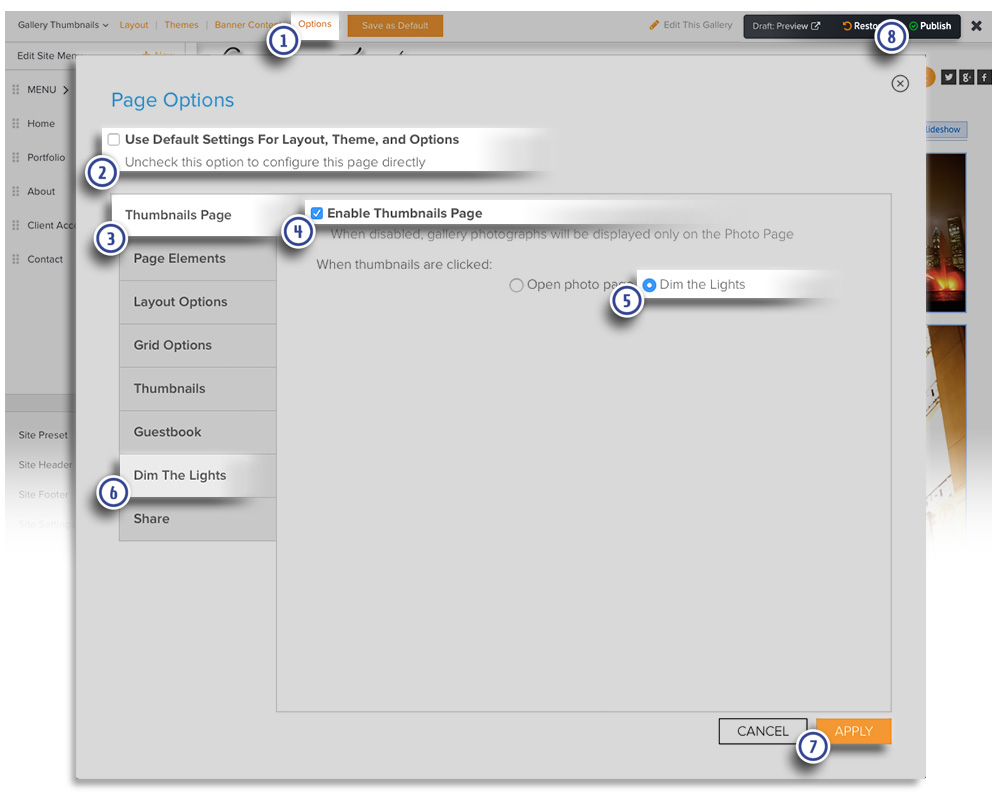
- Click to select Options from the top menu. A popup window will open.
- Uncheck Use Default Settings For Layout, Theme, and Options if necessary.
- Go to the Thumbnails Page tab.
- Make sure the the box for Enable Thumbnails Page is checked.
- Mark the circle for Dim the Lights next to When thumbnails are clicked.
- Go to the Dim the Lights tab and set the desired options.
- Click Apply to confirm and apply the selection.
- Click Publish to apply the new settings to your live site.