If you are required to select images for your pre-order, your photographer will send you an email once your photos are ready for you to select.
If you have not received such an email, please contact your photographer. You can usually find their contact information in the contact page of their website.
Selecting Pre-order Images
Open the email sent by your photographer inviting you to view your photos.
In the email, click on the link to the gallery.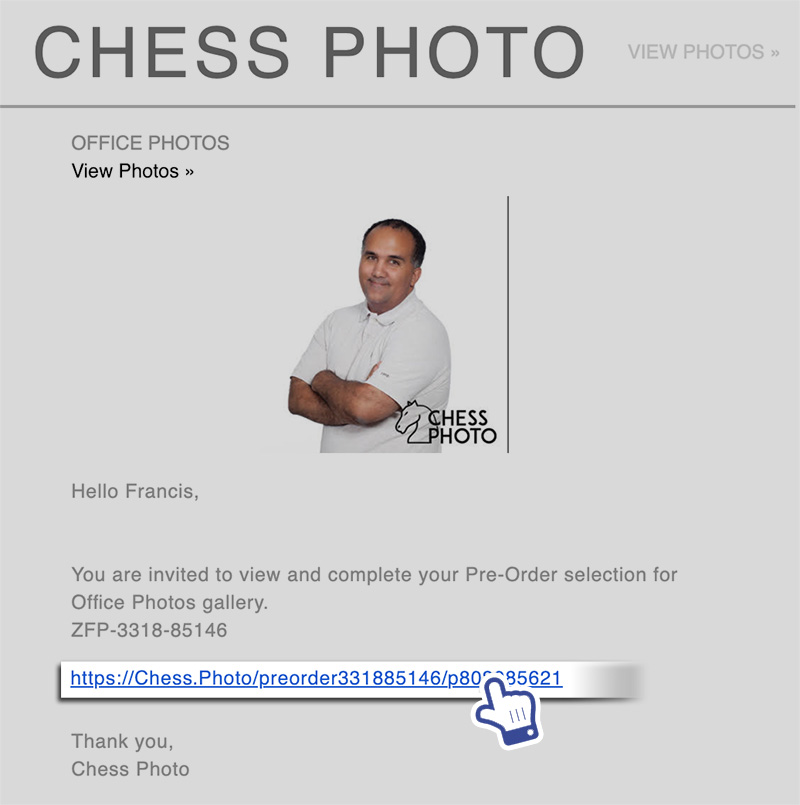
That will bring you to the gallery. If the gallery is locked with a password, you'll need to enter the password provided by your photographer before you can enter and view the images.
In the gallery, click on the desired image—or multiple images if you've ordered multiple packages and at least one addon. The selected image or images will be marked with a checkmark in the bottom left corner.
Click on I'm done Selecting, I'd like to assign when you have completed your selection(s).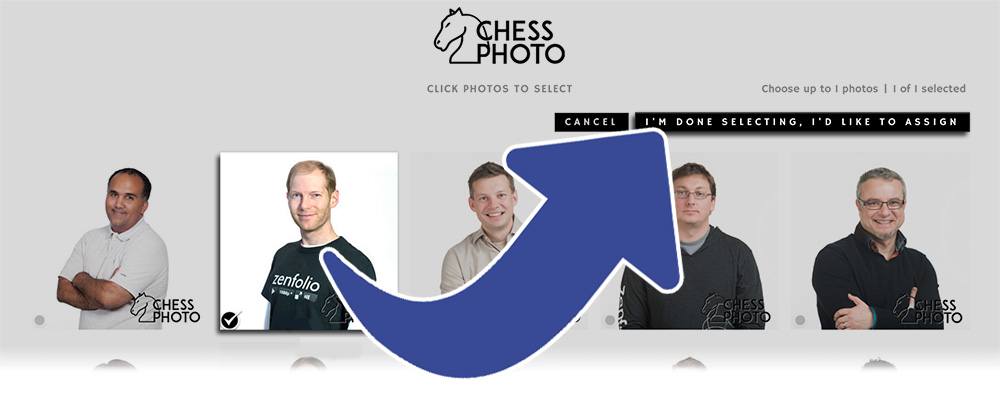
Drag and drop the image into the product window for the product onto which you would like the image to be printed.
If the pre-order package has multiple packages and addons, drag and drop other images into those other packages and addons.
Click on I'm Done once you have made your selection(s).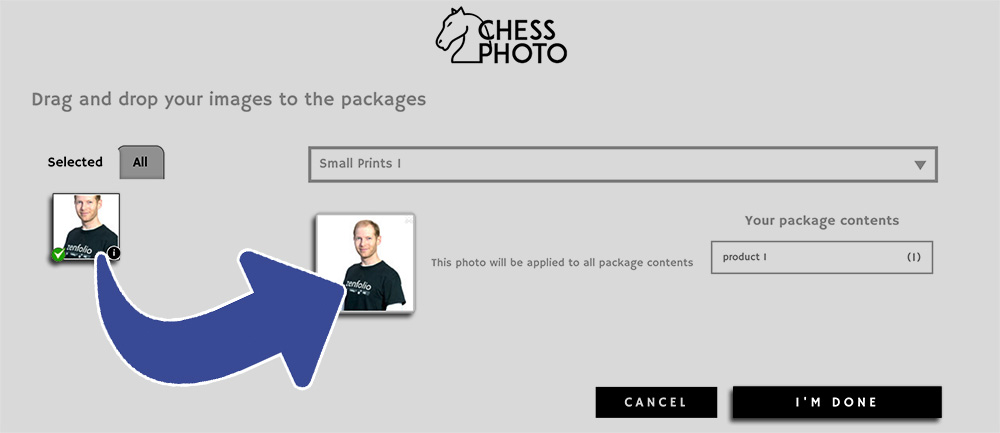
Please note: it is only possible to select one image per package and addon purchased in the pre-order.
The selected images will be displayed. Review the selected images to make sure that they correspond to the desired product.
Also review the shipping address for accuracy.
Click on Confirm once no more changes are needed.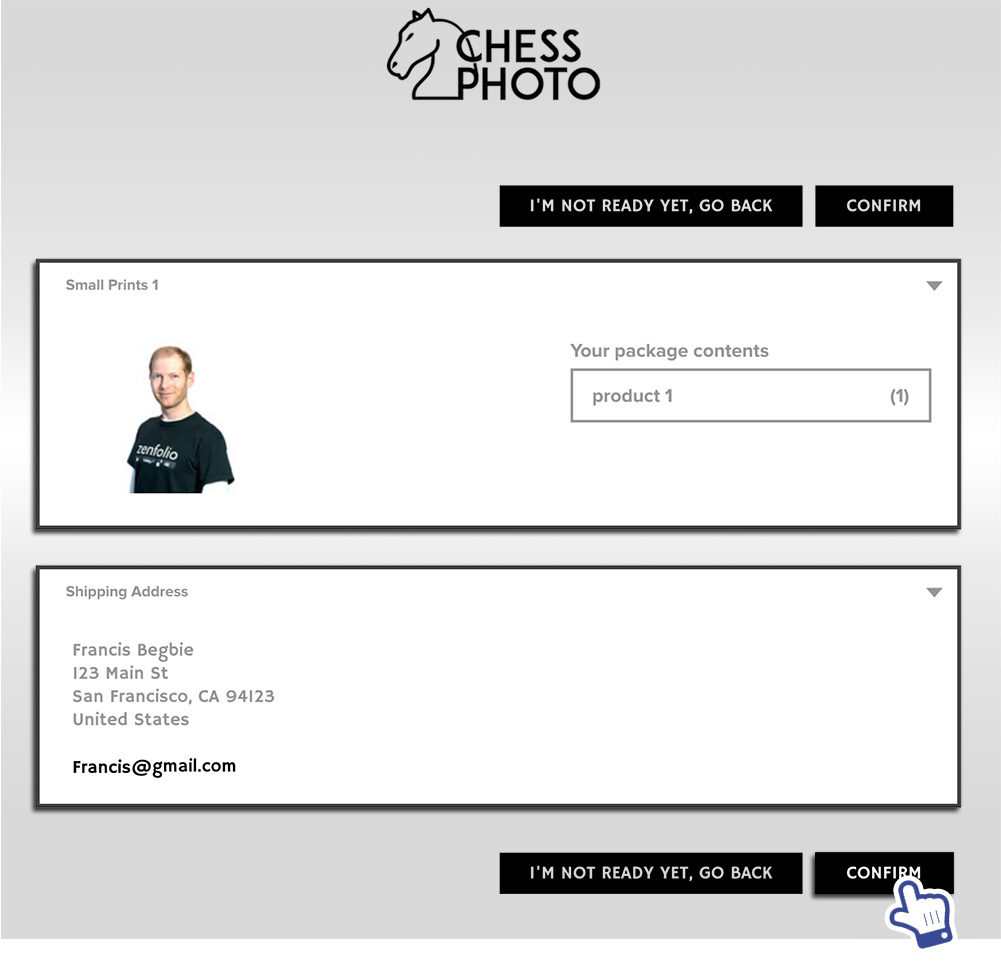
Your selections will then be sent to your photographer so they can be used to fulfill your pre-order.
Please contact your photographer if you have any additional questions about the order.