Exclusive to Pro and Advanced account subscribers.
Mpix Lab and MpixPro powered by Miller's Lab offers retouching services. Their expert artists will put finishing touches on your photos and erase the little details, such as facial blemishes, stray hairs, braces, glass glare and red eyes.
- Retouching services may be added to a price list as an option for your visitors to add to an order before checking out of their shopping cart.
- It can also be added to a new order by the photographer (or user account) and any pending order waiting for approval.
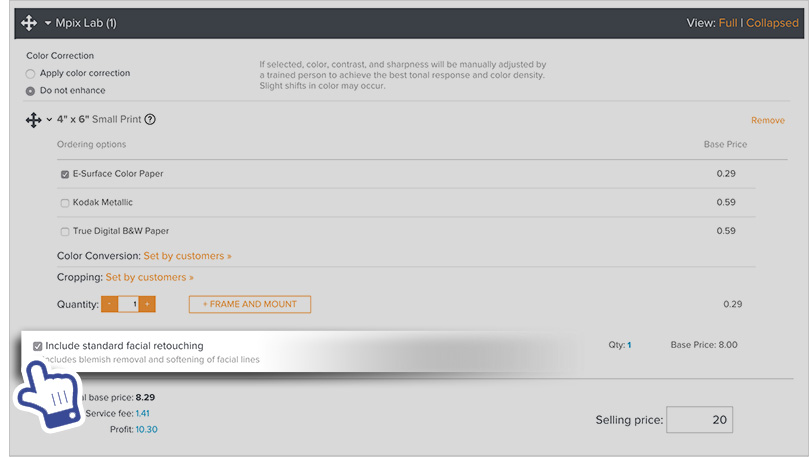
- Additionally, facial retouching may be added as part of a Single Image Package.
Once a photo has the retouching service added, it is applied to all other non-templated prints and product (from the same lab, on the same order) using that specific photo, at no additional charge.
Adding Retouching Services to a Price List
Follow these steps to add retouching services as an option to allow your visitors to select when buying prints:
- In your account, select SELLING from the Main Menu.
- Under Selling, click Price Lists.
- Click the name of the price list you would like to edit.

- After selecting the price list, click on the US Dollars currency in order to display the Mpix and MpixPro powered by Miller's Lab products.
- Click on Price List Settings. The Price List will be saved and a new page will load.
- Click on the lab through which you would like to offer Retouching Services.
- Check the boxes next to the types of retouching you wish to offer.
- Set the prices you want to charge for these services.
- Click Save.

Adding Retouching Services to a New Order
Any order made by a Pro or Advanced plan subscriber, may add the retouching service. To add the retouching service, go to the shopping cart, and select Add Retouching found within the print or product box.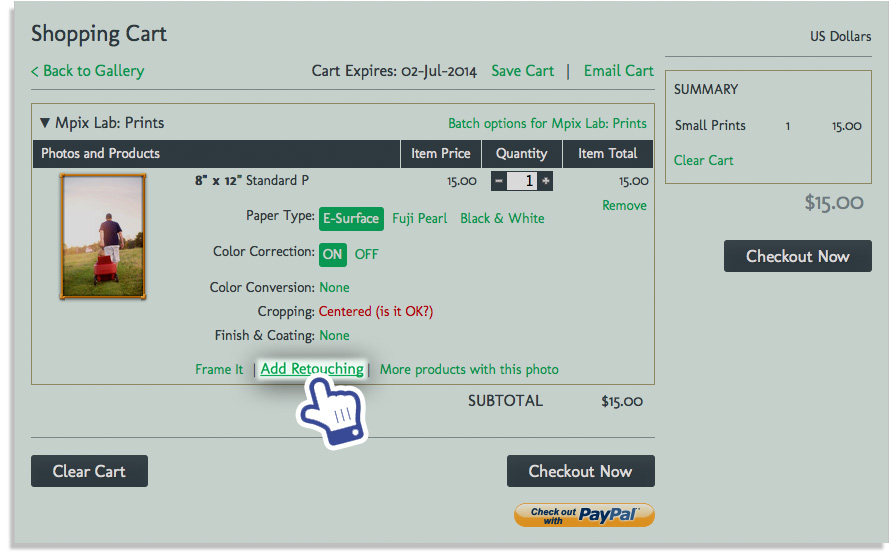
Selecting Add Retouching will open the Retouching Service window. You may then select the type of retouching you want, and choose the number of heads where it will be applied. You may select multiple retouching options for the same photo.
Once retouching has been added, it will appear within the order as an added retouching service, itemizing what changes were ordered. You can click change to make additional changes to the service.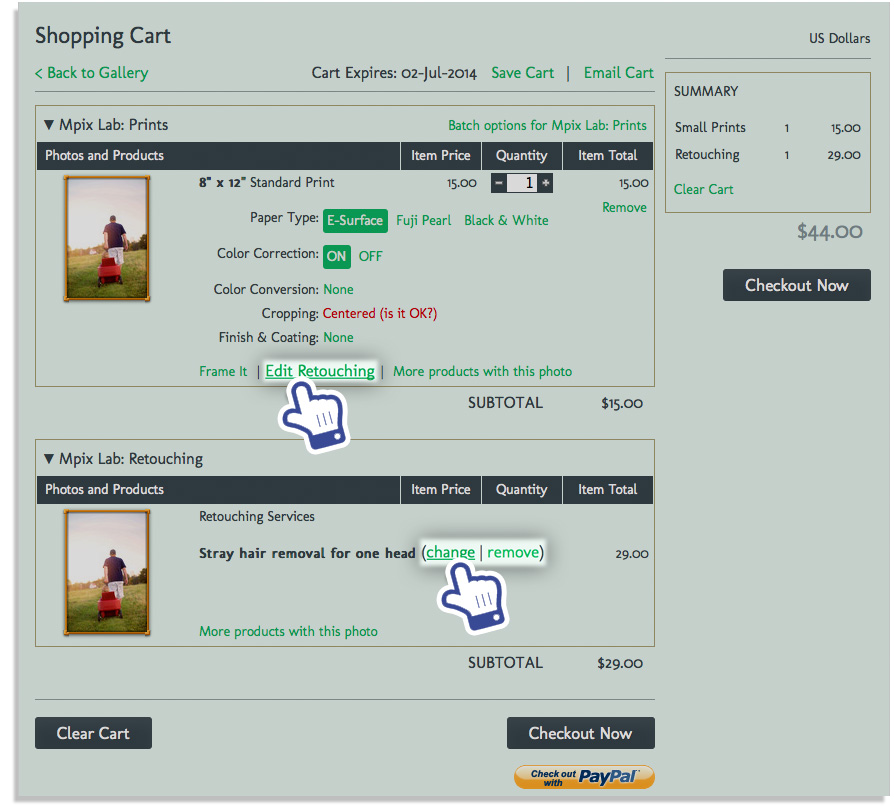
Adding Retouching Services to a Pending Order
Note: The ability to add retouching to Pending Orders is limited to Advanced account subscribers.
Pending orders waiting for approval may be modified to include retouching services. To add the retouching service, go to the order details of the pending order, and select Add Retouching found within the Prints or product box.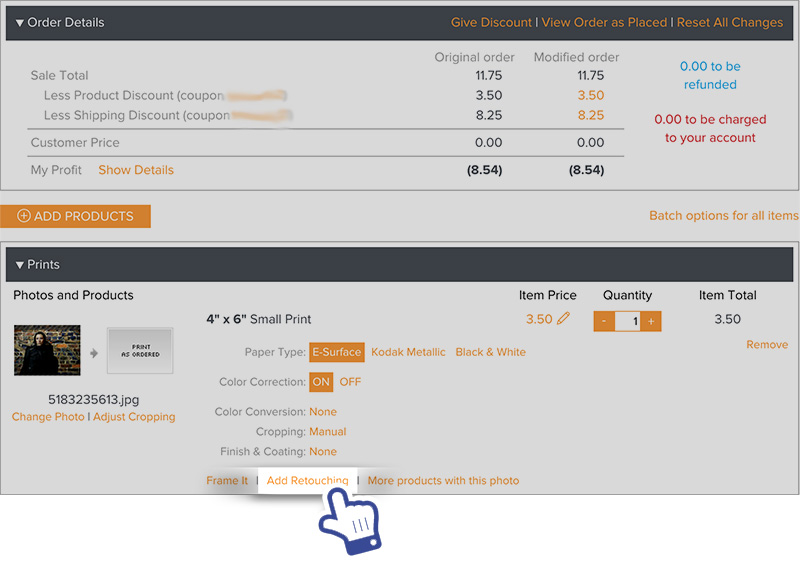
Selecting Add Retouching will open the Retouching Service window. You may then select the type of retouching you want, and choose the number of heads where it will be applied. You may select multiple retouching options for the same photo.
Once retouching has been added, it will appear within the order as an added retouching service, itemizing what changes were ordered. You can click change to make additional changes to the service.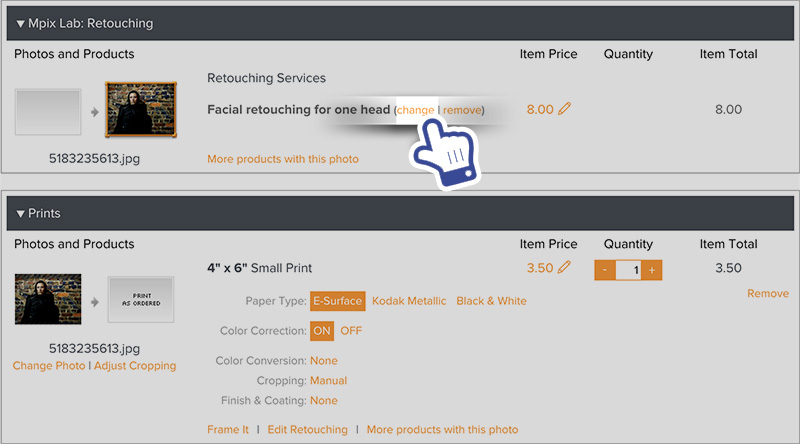
Adding Facial Retouching to a Single Image Package
Single Image Packages may Include standard facial retouching if the option is checked. This is only available when the type of package is set to be One photo for all products in the package (Single image package).