The ability to create Price Lists is only available to Pro and Advanced plan subscribers.
When you enable the ability to purchase products from a gallery, the products that you're offering for sale and their prices are automatically displayed when the client clicks the Buy button in the gallery.
Click HERE to see how that works.
But you can also choose to display a page that simply lists the products that you're offering for sale and their prices.
That is done by creating a custom page and editing it to display a list of the products that you're offering for sale and their prices.
Click HERE for an example of a custom page that shows a list of products and prices.
There are two steps needed for creating a pricing page:
1 Create the List of Products and Prices from the Price List
2 Create the Custom Page and Add the List to the Page
Create the List of Products and Prices from the Price List
To display a pricing page, the first step is to create a list of the products and prices. If you've already created a price list in your account, you can display that list and then copy and paste the list into a custom page.
Here is how to display the list from the price list.
- Go to Price Lists page by clicking on Selling in the top menu in the Dashboard than clicking on Price Lists. Click HERE to go directly to that page.
- Click on the Price List with the products and prices you would like to display in the pricing page.
- Click on Print on the right side of the page.
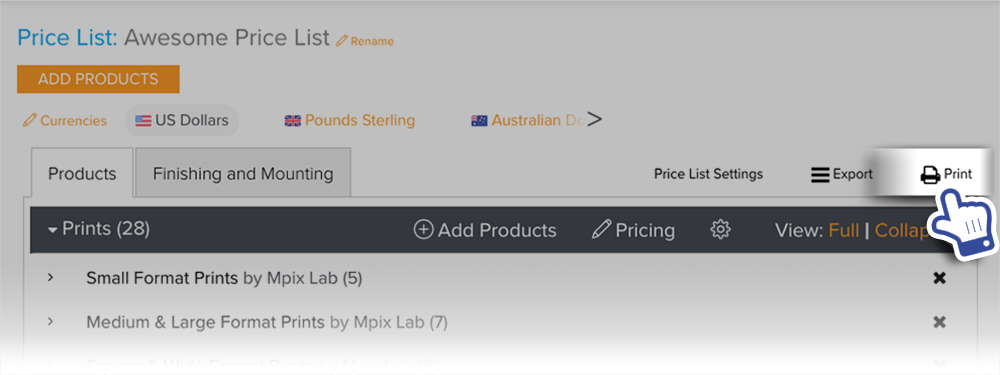
The products and prices from the price list will then be displayed in a pop up window.
Copy the contents of that page to your clipboard by highlighting the info then copying all of the text.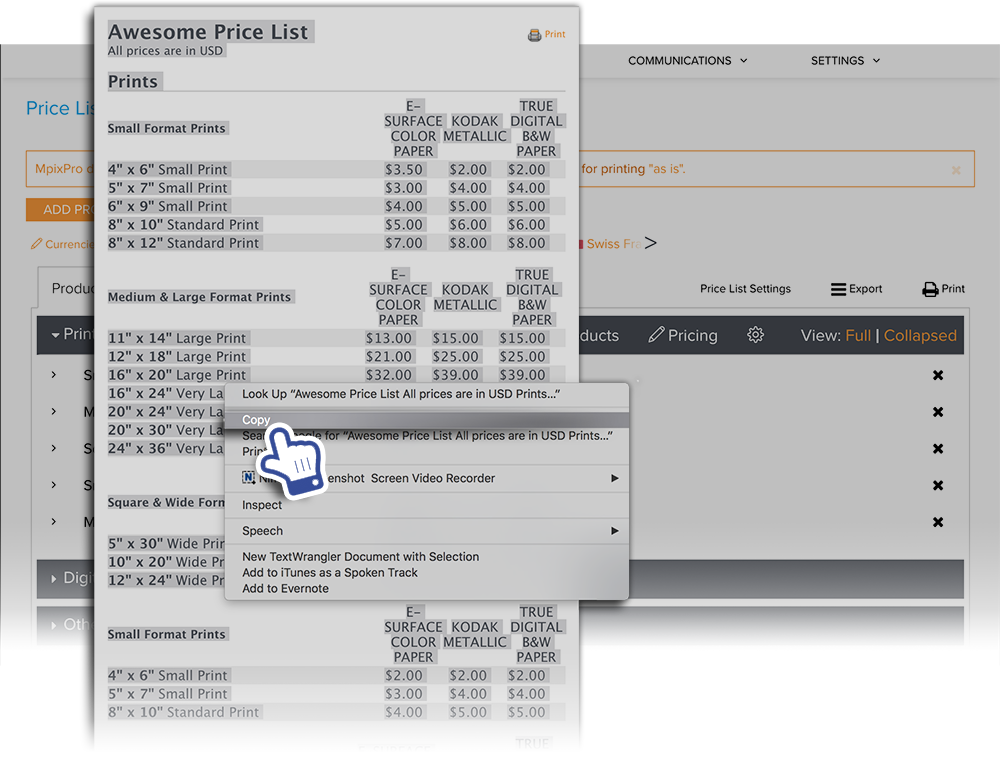
Create the Custom Page and Add the List to the Page
The next step is to add the list to the custom page.
- First create the custom page. Click HERE for how to create a custom page.
- Then paste into the custom page editing window the text that was copied from the list.
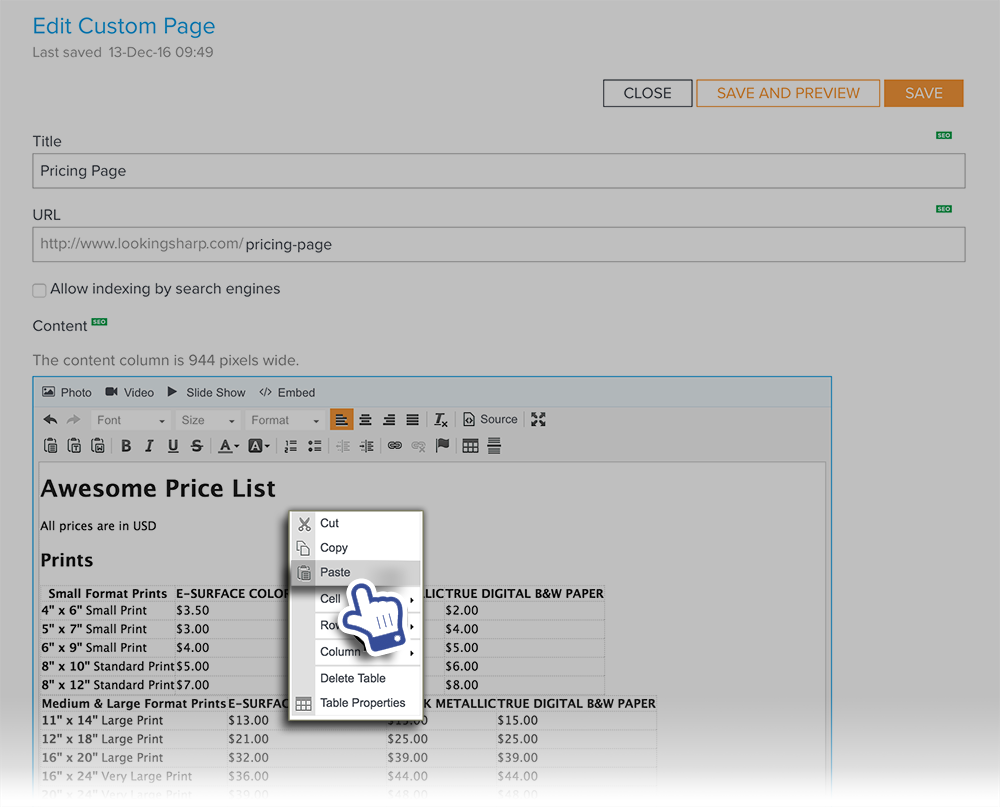
Edit the rest of the custom page to the desired presentation.
Click Save to save the custom page or click Save and Preview to also view the page.
After creating the pricing page, you may want to add a link to your Site Menu that links to the new custom page.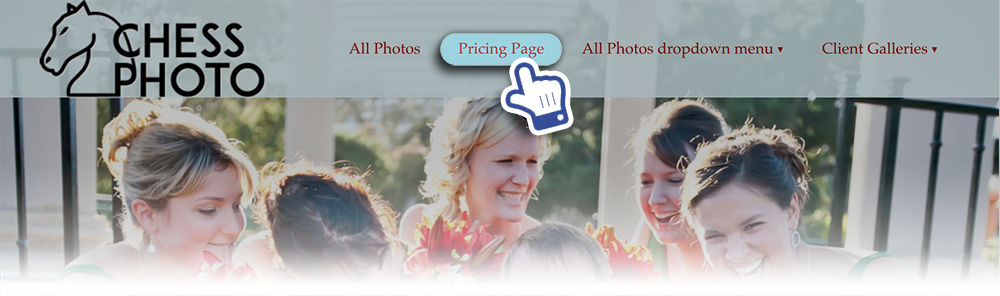
Click HERE for how to create links in your Site Menu.
You may also want to create a session pricing page to display the pricing of the photo sessions that you currently offer. Did you know that you can add a booking widget to the Custom Page to allow clients to book & pay directly through your site?
Check out Zenfolio's booking tool, BookMe!
BookMe is an easy-to-use scheduling feature that allows your clients to book your photography services directly from your website. BookMe removes the guess-work from availability requests and gives you the power to focus on what you do best - managing your photography business.
