In the Gallery Thumbnails Pages, the Download button is automatically displayed when the downloading of original images has been enabled for the gallery and after the Select Photos button is clicked.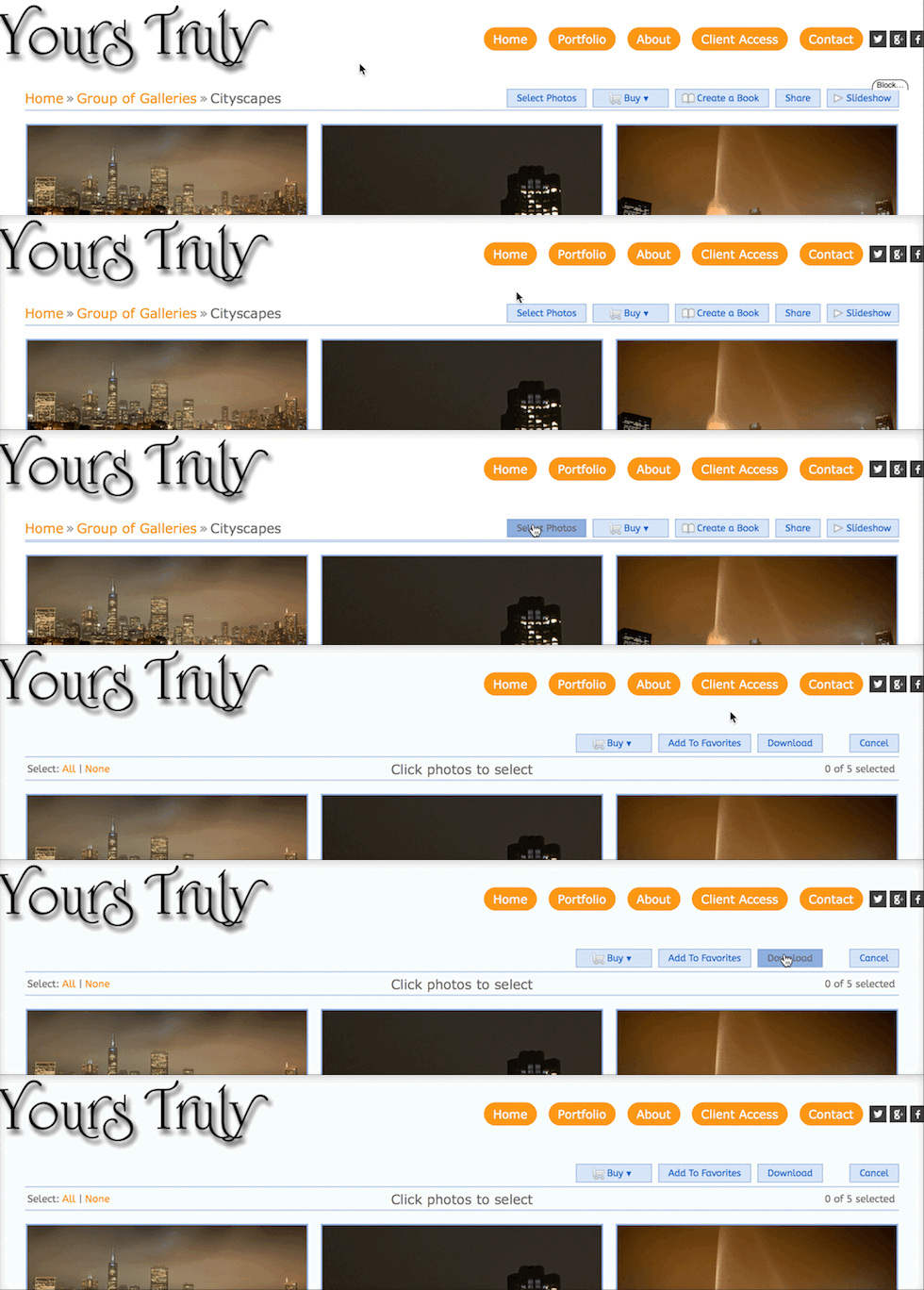
The option is also provided to hide the Select Photos button and display the Download button instead.
How to Hide the Select Photos Button and display the Download Button
For the Download Button to be displayed, the downloading of original images for free must first be enabled in the gallery. That is done through the Access Control panel in the Photos page of the Dashboard.
See this guide for step by step instructions on how to allow downloading from a gallery.
Hiding the Select Photos Button
New Photos Page: Accessing Customize View of a Gallery
After making sure that the free downloading of original images is enabled, follow these steps for hiding the Select Photos button.
- In your account, go to Photos.
- Navigate to the desired Gallery under the Organizer.
- Hover the mouse pointer over Preview then click on Customize.
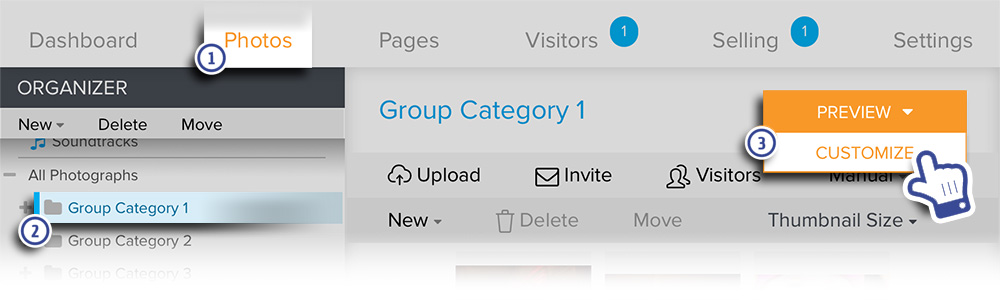
New Photos Page: Accessing Customize View of a Gallery
(Accounts created after May 2018)
- In your account, go to Photos.
- Navigate to the desired Gallery under the Organizer.
- Click on Preview.
- In the Customize view, click on Edit
- Then choose Page from the dropdown menu that appears
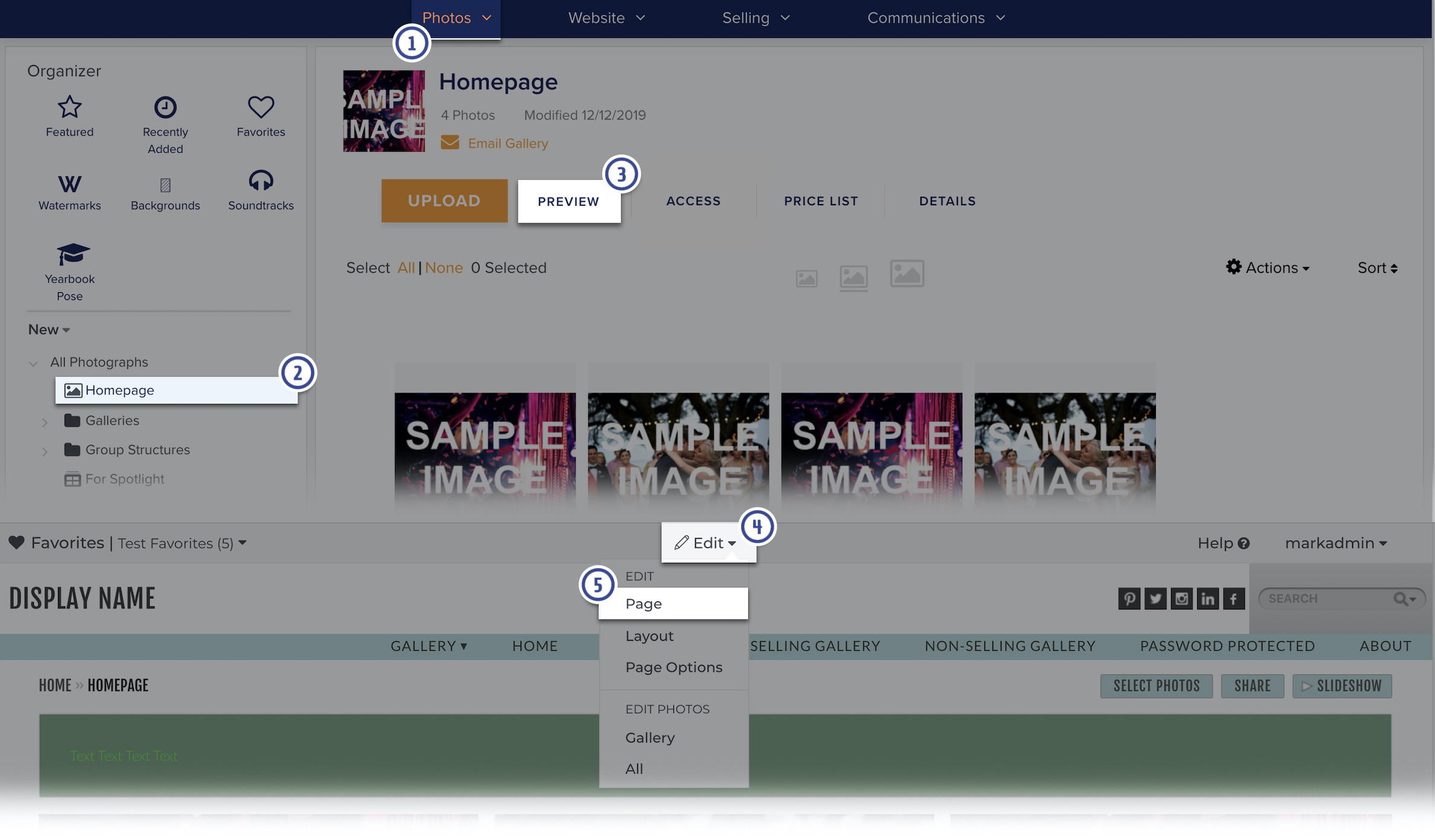
Steps continued...
The page will refresh with Customize Website View displayed at the top, confirming that you are in the customization mode.
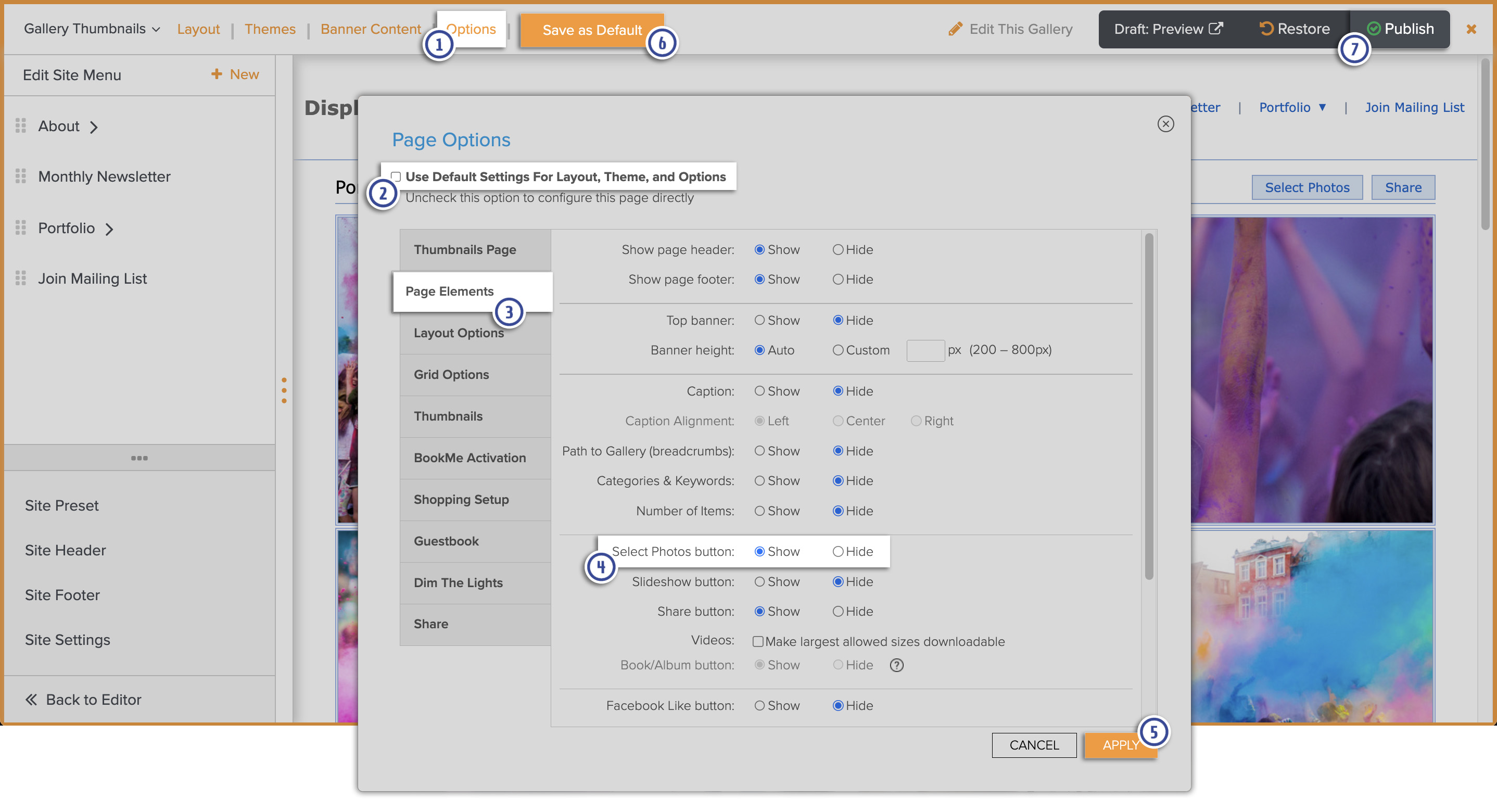
- Go to Options.
- Uncheck Use Default Settings For Layout, Theme, and Options if necessary.
- Go to the Page Elements tab.
- Set the Select Photos button to Hide.
- Click Apply.
- Click on Save as Default to apply the same settings to other similar pages that use default settings.
- Publish your changes before exiting Customize Website View to make those changes live on your site.
Now the Download button is displayed and your clients can click that button to download all of the images.
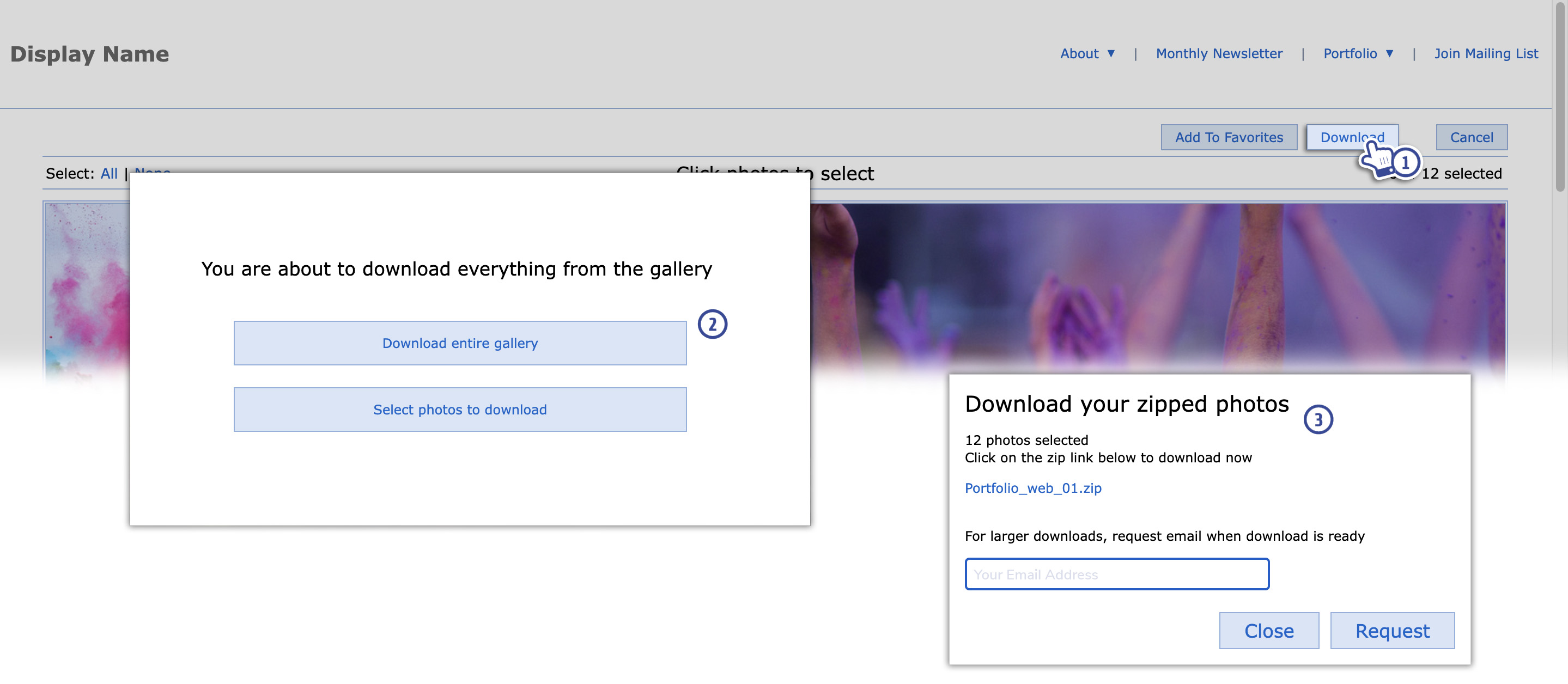
When the Download button is clicked, the option will be displayed for them to download all of the images in the gallery or choose specific photos to download.
If the option to download the entire Gallery is selected, or if a selection of multiple individual photos is made, there will be two options for downloading.
- Click on the .zip links provided to begin downloading the files in the browser. This download method requires a strong and constant connection to our servers as the systems will be generating the .zip files simultaneously as they're being downloaded. Any disruption or drop in connection could cause the download to stop or fail.
- Recommended: Enter an email address and click Request to have the .zip files sent via email. This download method creates a request for the files within the Zenfolio system, and the .zip files are generated behind the scenes before being sent via email. This allows for a much faster and much more reliable downloading option. After receiving the emailed files, most (if any) download issues are local network related.