This feature allows you to quickly replace a photo with a new photo or an existing photo from another gallery. This is especially useful if you have low resolution photos uploaded and need to replace them with high resolution versions for printing or sale as a digital product.
What does your Account look like?
Click on the image that matches your view for instructions specific to your interface.
Original Photos Page:
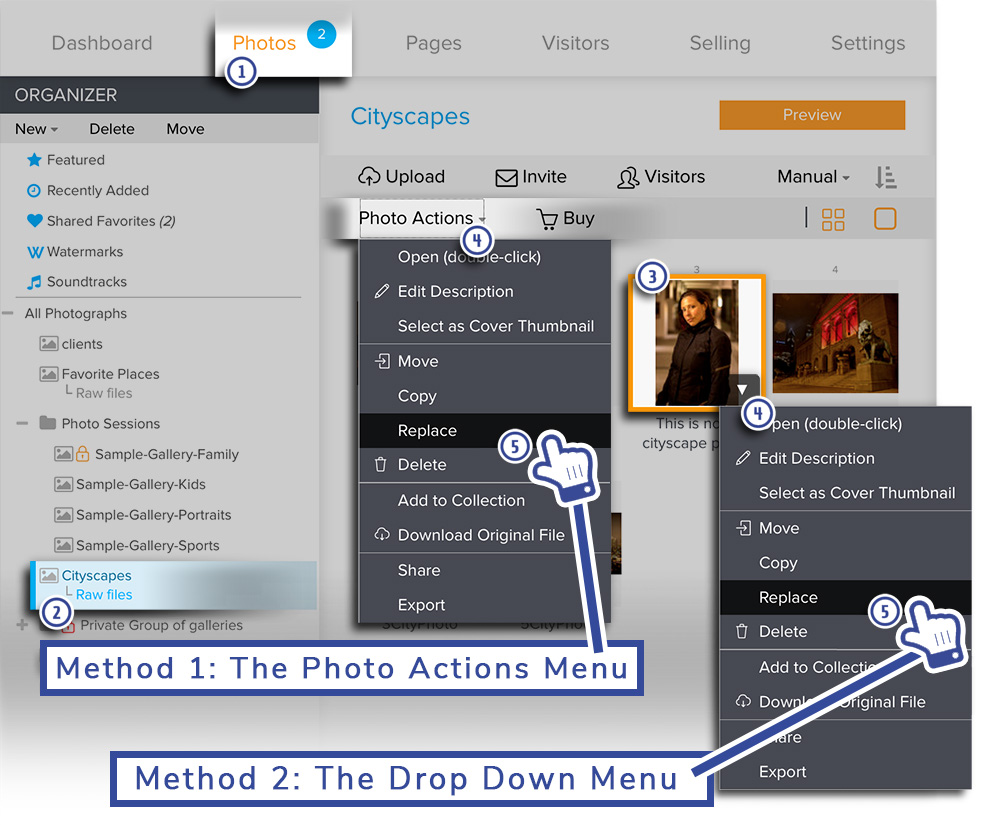
Method 1. Using the Photo Actions Menu
- In your account, go to Photos.
- Navigate to the gallery that contains the photo is going to be replaced.
- Select the thumbnail of the photograph you would like to replace.
- In the toolbar above the images, click on Photo Actions and a drop-down menu will appear.
- Choose Replace.
Method 2. Using the Drop Down Photo Menu
- In your account, go to Photos.
- Navigate to the gallery that contains the photo is going to be replaced.
- Select the thumbnail of the photograph you would like to replace. A menu arrow will appear.
- Click on the menu arrow and a drop-down menu will appear.
- Choose Replace.
A popup window will open prompting you to select the replacement file.
You can then replace the photo by uploading a new file or by selecting an existing photo in one of your galleries.
Replace Photo menu by uploading a new file
- Click on the Upload Photos tab.
- Drag and drop the desired images into the Drag and Drop box provided.
You can also click Add Files to use your file manager to select the replacement image.
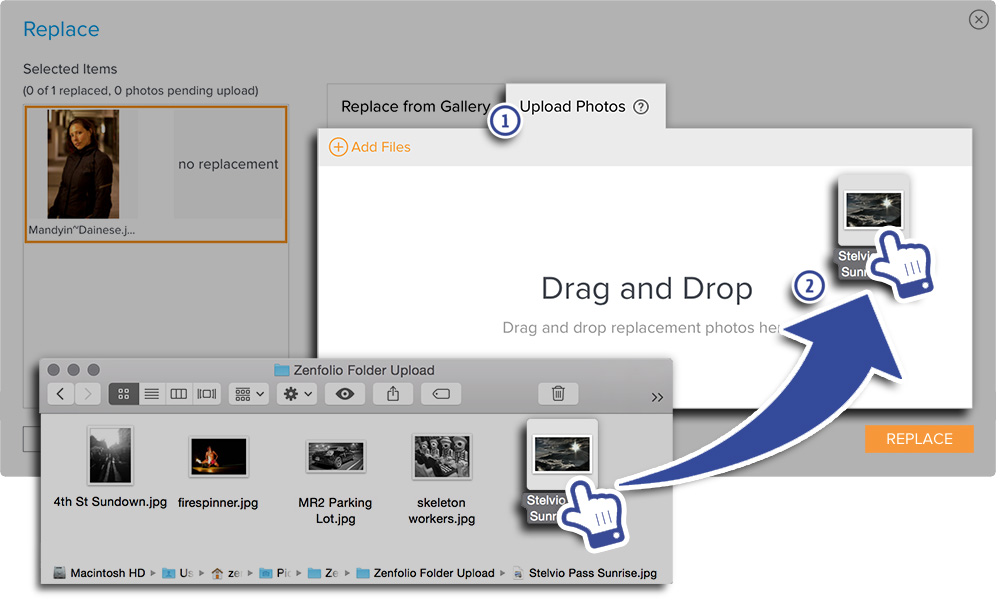
- After dragging and dropping the images, click on the image that you would like to use as the replacement image.
- Click Replace.
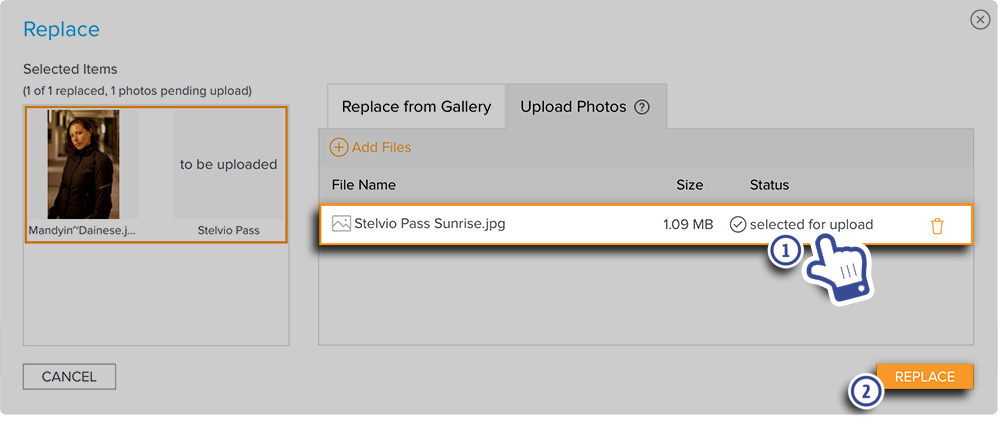
Note: The above steps can be applied to multiple selected items as one operation. Hold the Control key (Command key on a Mac) on your keyboard while clicking on thumbnails to highlight multiple thumbnails. Then click on Photo Actions and choose Replace from the menu.
Replace Photo menu from an existing gallery
- Click Select Gallery and a popup window will open with a tree list of all your galleries.
- Navigate the tree and select the desired gallery. Click Select. Thumbnails from the gallery will load in the window.
- Select to highlight the photo you would like to use as a replacement. A preview of the replacement will be visible in the top left corner.
- Click Replace to confirm.
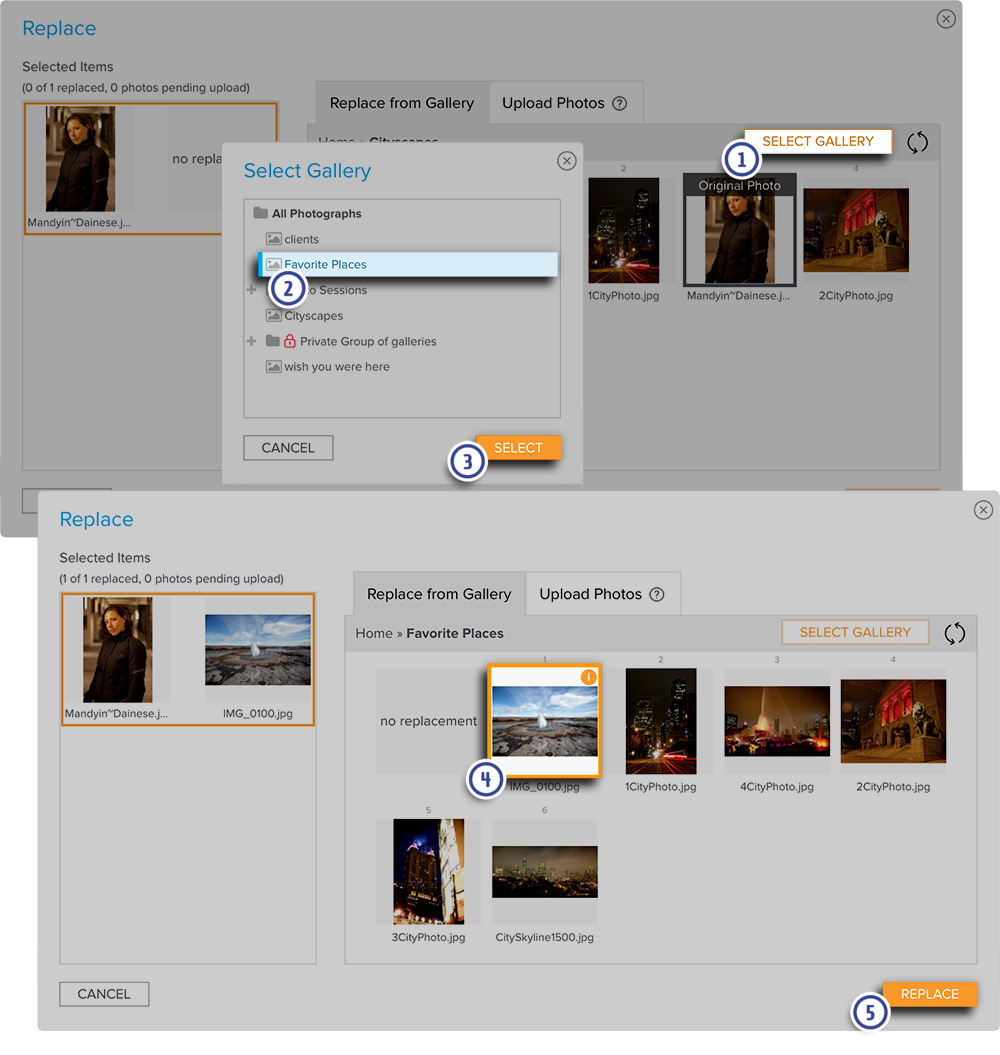
Note: The above steps can be applied to multiple selected items as one operation. Hold the Control key (Command key on a Mac) on your keyboard while clicking on thumbnails to highlight multiple thumbnails. Then click on Photo Actions and choose Replace from the menu.
New Photos Page:
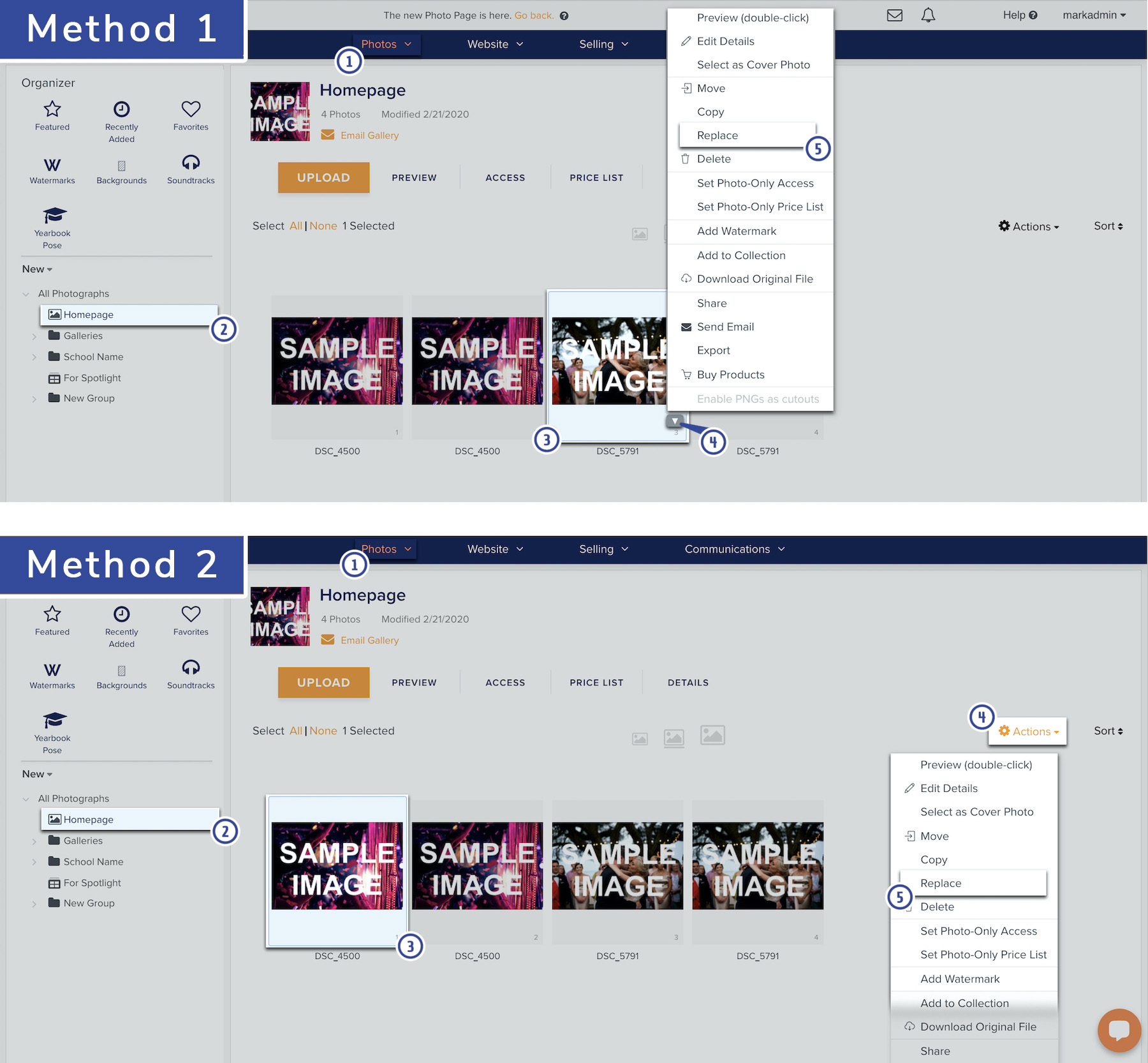
Method 1. Using the Drop Down Photo Menu
- In your account, go to Photos.
- Navigate to the gallery that contains the photo is going to be replaced.
- Select the thumbnail of the photograph you would like to replace and hover your mouse pointer over the thumbnail image. A menu arrow button will appear.
- Click on the menu arrow and a drop-down menu will appear.
- Choose Replace.
Method 2. Using the Photo Actions Menu
- In your account, go to Photos.
- Navigate to the gallery that contains the photo is going to be replaced.
- Select the thumbnail of the photograph you would like to replace.
- In the area above the thumbnails, click on Actions and a drop-down menu will appear.
- Choose Replace.
A popup window will open prompting you to select the replacement file.
You can then replace the photo by uploading a new file or by selecting an existing photo in one of your galleries.
Replace Photo menu by uploading a new file
- Click on the Upload Photos tab.
- Drag and drop the desired images into the Drag and Drop box provided.
You can also click Add Files to use your file manager to select the replacement image.
- After dragging and dropping the images, click on the image that you would like to use as the replacement image.
- Click Replace.
Note: The above steps can be applied to multiple selected items as one operation. Hold the Control key (Command key on a Mac) on your keyboard while clicking on thumbnails to highlight multiple thumbnails. Then click on Photo Actions and choose Replace from the menu.
Replace Photo menu from an existing gallery
- Click Select Gallery and a popup window will open with a tree list of all your galleries.
- Navigate the tree and select the desired gallery. Click Select. Thumbnails from the gallery will load in the window.
- Select to highlight the photo you would like to use as a replacement. A preview of the replacement will be visible in the top left corner.
- Click Replace to confirm.
Note: The above steps can be applied to multiple selected items as one operation. Hold the Control key (Command key on a Mac) on your keyboard while clicking on thumbnails to highlight multiple thumbnails. Then click on Photo Actions and choose Replace from the menu.