What does your Account look like?
Click on the image that matches your view for instructions specific to your interface.
Original Photo Page: Using Zenfolio Provided Watermark Images
To quickly apply Watermarks as an additional measure to protect your photos you can use one of the four Watermark designs supplied by Zenfolio.
- In your account, go to Photos.
- Go to Watermarks under the Organizer
- Click New. The Select Watermark Image window will appear.
- Mark the circle for Use Standard image then choose the desired watermark.
- Click Save
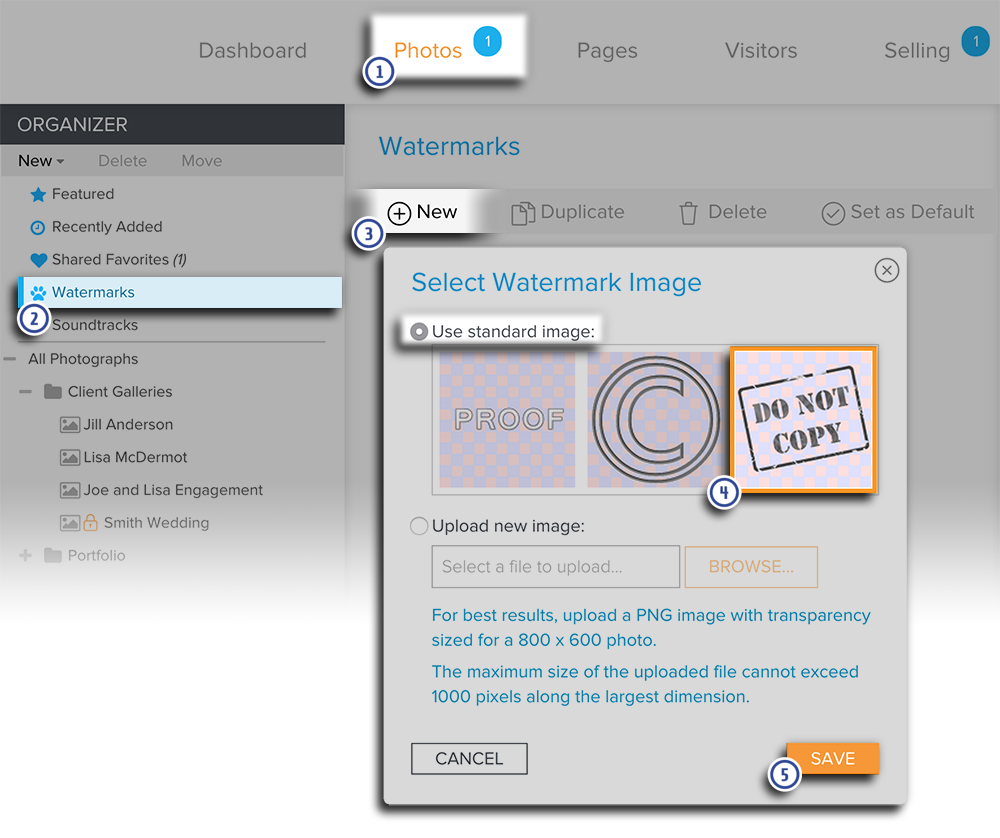
The new Watermark will be loaded in your Watermarks page. You can enter a new name for it right away or accept the default name 'New Watermark'.
After creating the new watermark, you'll need to assign the watermark to your photos.
You can also choose to set it as the Default Watermark so that is is automatically added to new uploads.
See this Help section to edit your new watermark.
Please also see this video on how to use Watermarks:
New Photo Page: Using Zenfolio Provided Watermark Images
To quickly apply Watermarks as an additional measure to protect your photos you can use one of the four Watermark designs supplied by Zenfolio.
- In your account, go to Photos.
- Go to Watermarks under the Organizer
- Click New. The Select Watermark Image window will appear.
- Mark the circle for Use Standard image then choose the desired watermark.
- Click Save
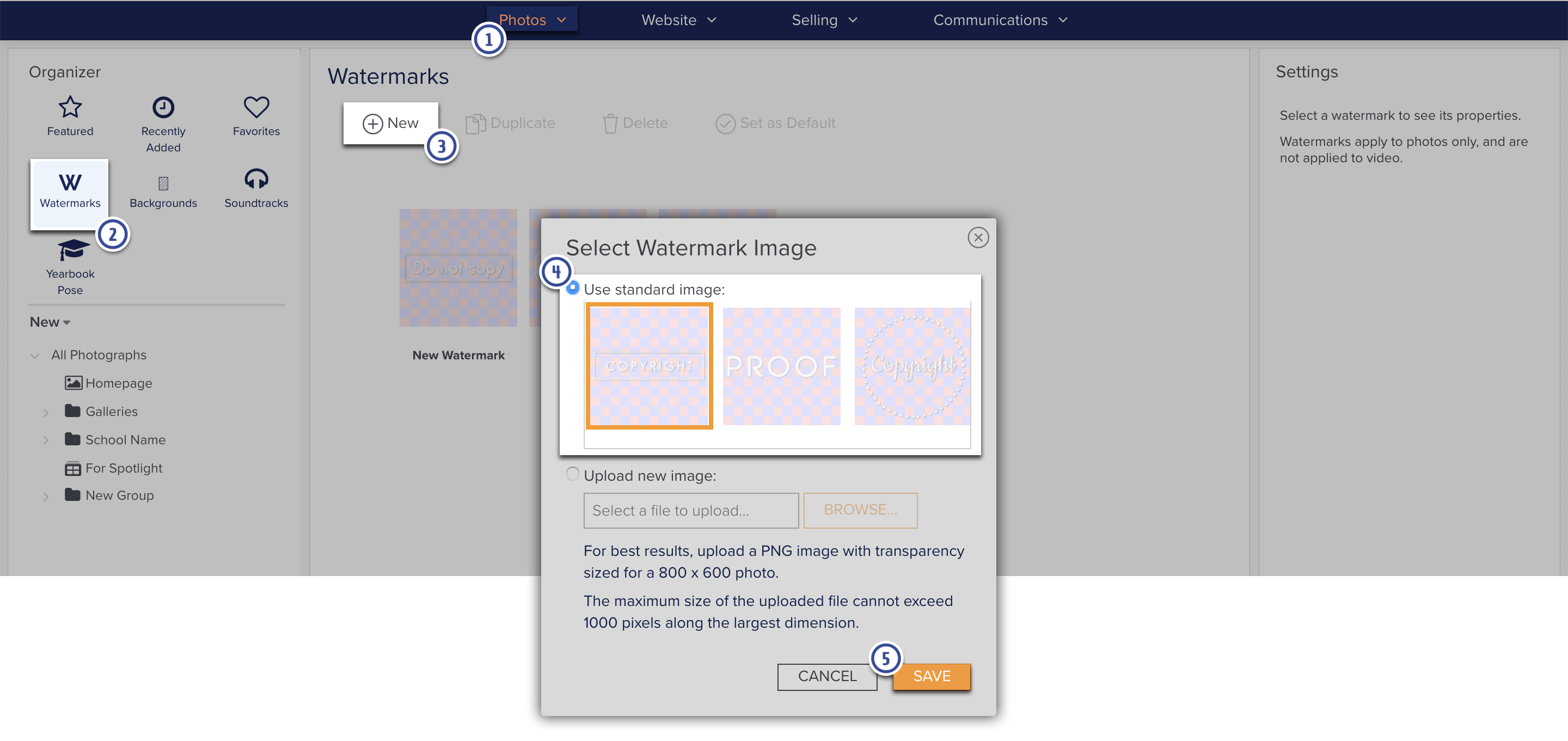
The new Watermark will be loaded in your Watermarks page. You can enter a new name for it right away or accept the default name 'New Watermark'.
After creating the new watermark, you'll need to assign the watermark to your photos.
You can also choose to set it as the Default Watermark so that is is automatically added to new uploads.
See this Help section to edit your new watermark.