There are different actions available for the images that you've uploaded to your Zenfolio account. You can find the different Actions either under the Photo Menu or under the Photo Actions Menu.
You can find either menu by navigating to the Photos section of your account and selecting a photo you want to make changes to. There you will see the Photo Actions Menu or, if you hover the mouse pointer over the image, the button for the Photo Menu will appear.
What does your Account look like?
Original Photos Page: Photo Menu and Photo Actions Menu
Many operations can be accessed using the Photo Menu and Photo Actions Menu, including:
- Open (this is the same as double-clicking a photograph to open it in the Single Photo mode)
- Edit Description
- Select as Cover Thumbnail
- Move
- Copy
- Replace
- Delete
- Add to Collection
- Download Original File
Information in this section also covers:
- Viewing photo modes
- Downloading the original uploaded photos
- Sorting photos and video
- Rotating photos
- Reading EXIF information
- Reading IPTC information
The Photo Actions Menu is useful when you want to apply an action to multiple selected photos. The Photo Actions Menu is located on the left side of the Section Menu above the photo or photo thumbnails.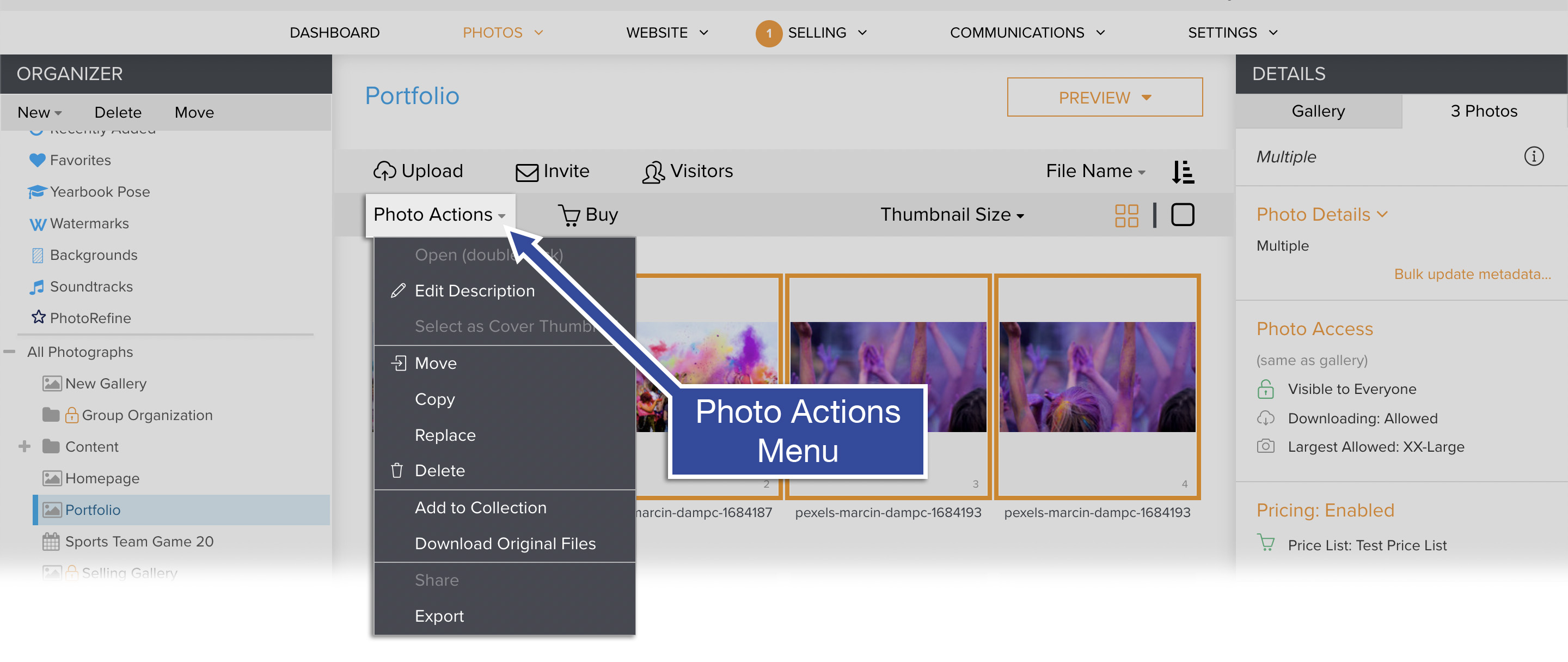
The Photo Menu gives you quick access to common tasks. It is available on mouse-over anywhere a photo thumbnail or a full size image is displayed in the Main Area.
To access the Photo Menu, move your mouse over the photo and click on the down-pointing arrow  that appears.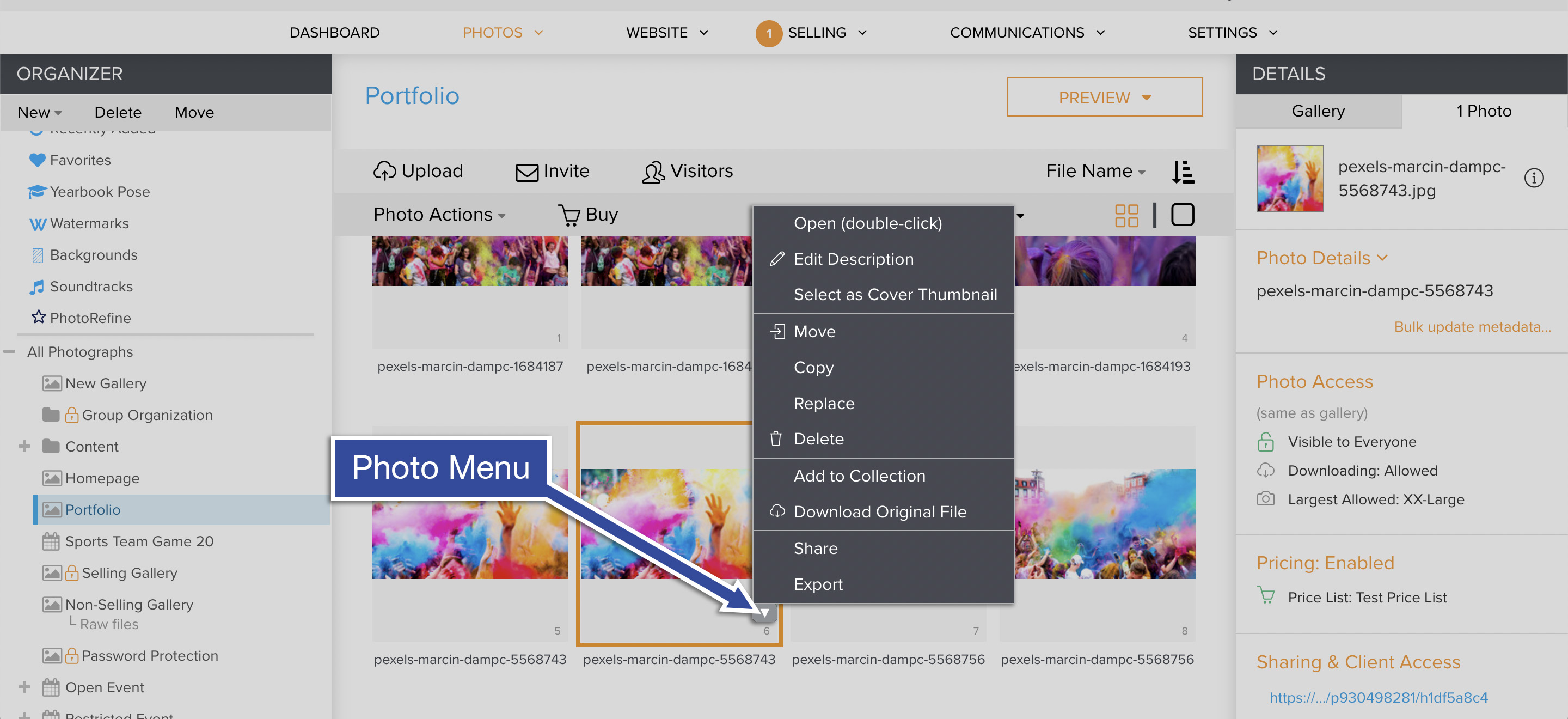
Multiple Item Selection
Many tasks, such as deleting, moving, and editing descriptions, can be performed on multiple items at the same time. This is also known as batch processing.
Continuous selection using the Shift key:
- In the Organizer on the left-hand side, click to select the gallery containing the photographs you would like to select or double-click the gallery in the Main Area. Thumbnails of the photos from the gallery will load in the Main Area and the title of the gallery will be selected.
- In the Main Area, click to select a thumbnail of the first photo to be included in the continuous selection. While holding down the Shift key on your keyboard, click to select a thumbnail of the last photo to be included in the continuous selection. All photos located between the selected items will be included in your selection.
Selecting multiple photographs using the Control key (Command key on Mac OS X):
- In the Organizer, click to select the gallery containing the photographs you would like to select or double-click the gallery in the Main Area. Thumbnails of the photos from the gallery will load in the Main Area and the title of the gallery will be selected.
- In the Main Area, click to select a thumbnail of the first photo to be included in the selection. While holding down the Ctrl key on your keyboard (Command key on Mac OS X), click to select additional photos to be included in the selection. You can continue adding to your selection until you select all the desired photos.
Selecting all of the photographs in a gallery
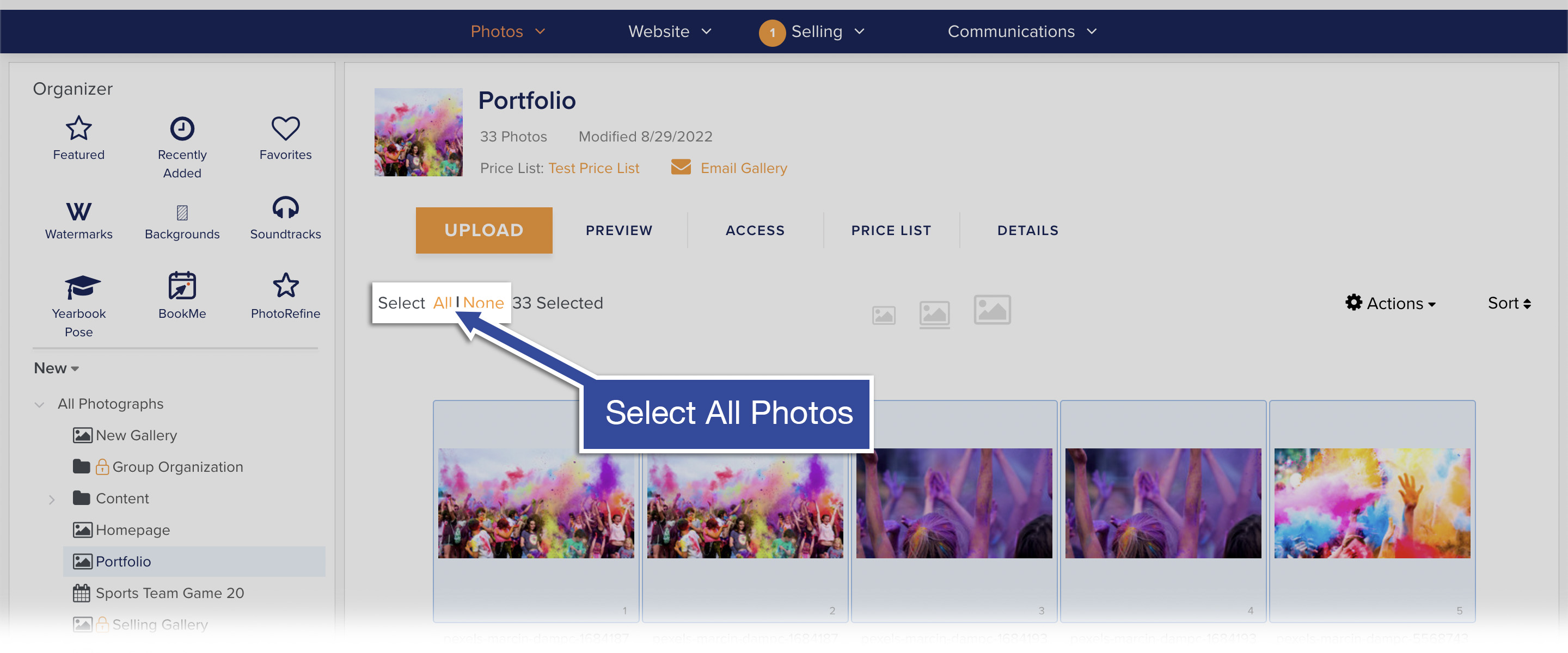
You can also select all of the photos in the gallery at once so you can apply a Photo Action to all of the photos in the gallery. This will allow you to do things like Copy or Move all of the photos from one gallery to another.
You can find the link to select all of the photos in the gallery in the menu bar below the photo thumbnails.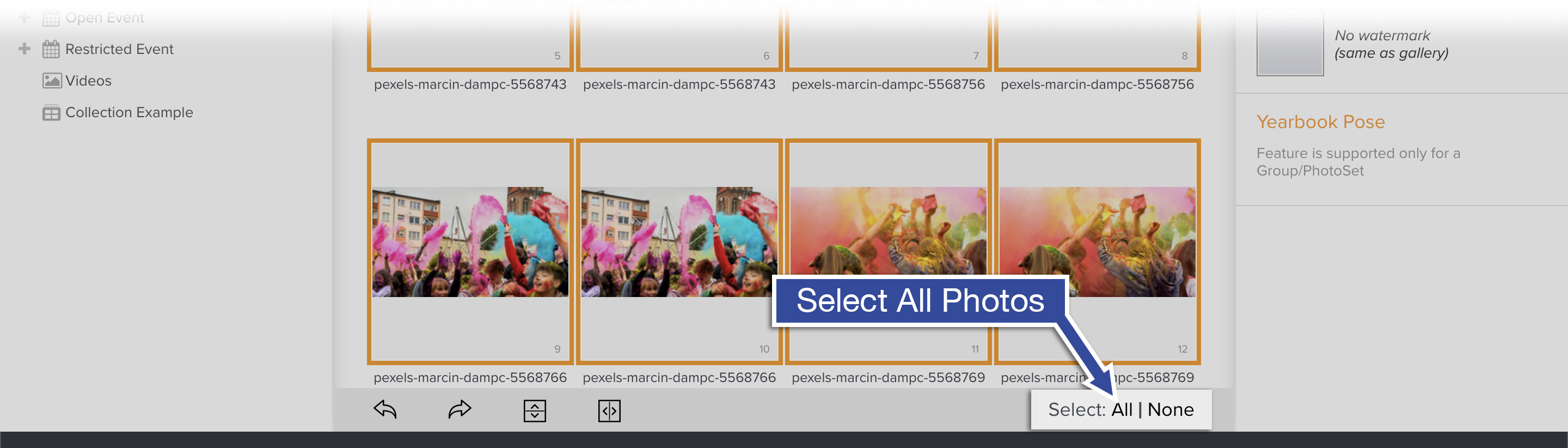
New Photos Page: Photo Menu and Photo Actions Menu
Many operations can be accessed using the Photo Menu and Photo Actions Menu, including:
- Open (this is the same as double-clicking a photograph to open it in the Single Photo mode)
- Edit Description
- Select as Cover Thumbnail
- Move
- Copy
- Replace
- Delete
- Add to Collection
- Download Original File
Information in this section also covers:
- Viewing photo modes
- Downloading the original uploaded photos
- Sorting photos and video
- Rotating photos
- Reading EXIF information
- Reading IPTC information
The Photo Actions Menu is useful when you want to apply an action to multiple selected photos. The Photo Actions Menu is located in the top right when in a Gallery in the Photos section of your account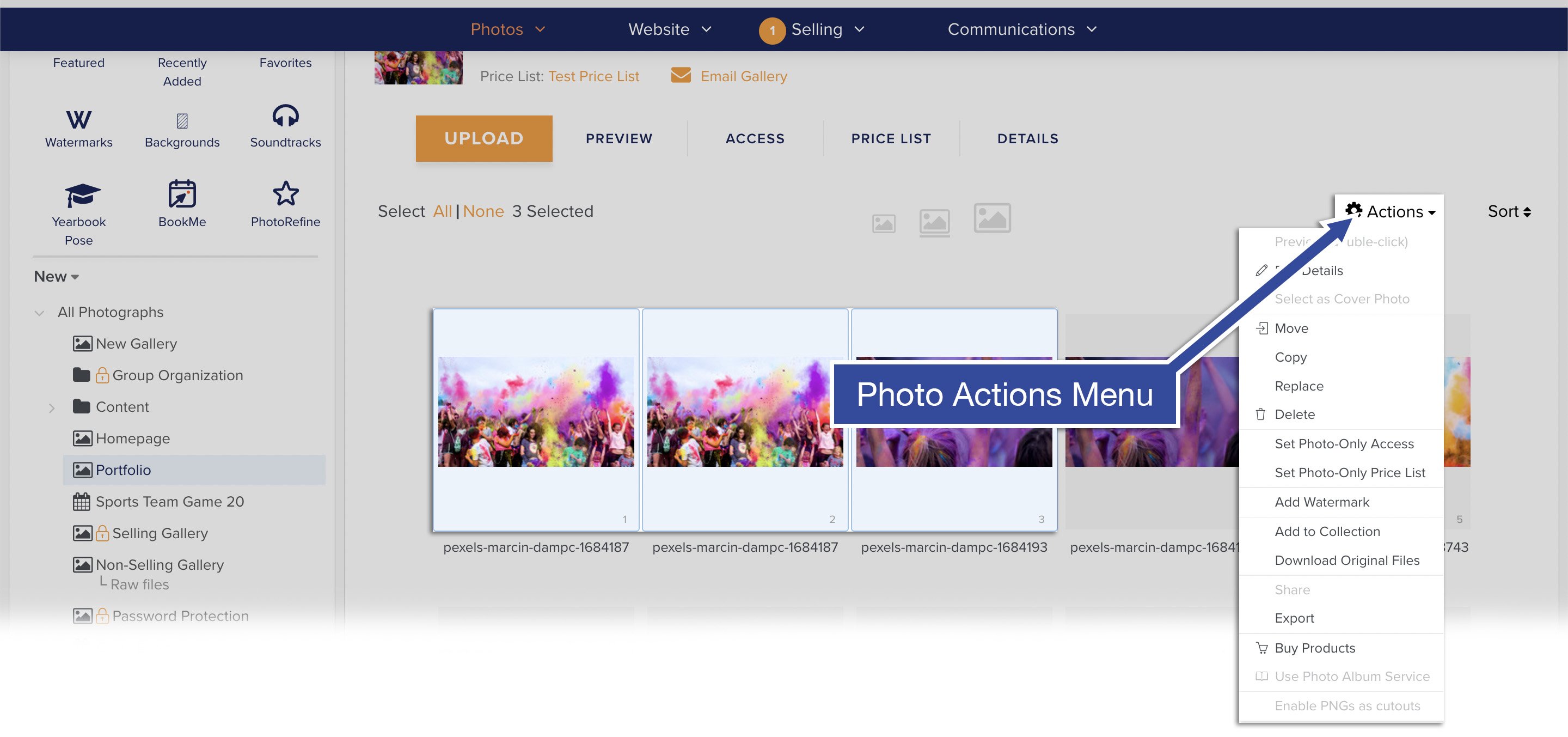
The Photo Menu gives you quick access to common tasks. It is available on mouse-over anywhere a photo thumbnail or a full size image is displayed in the Main Area.
To access the Photo Menu, move your mouse over the photo and click on the down-pointing arrow that appears.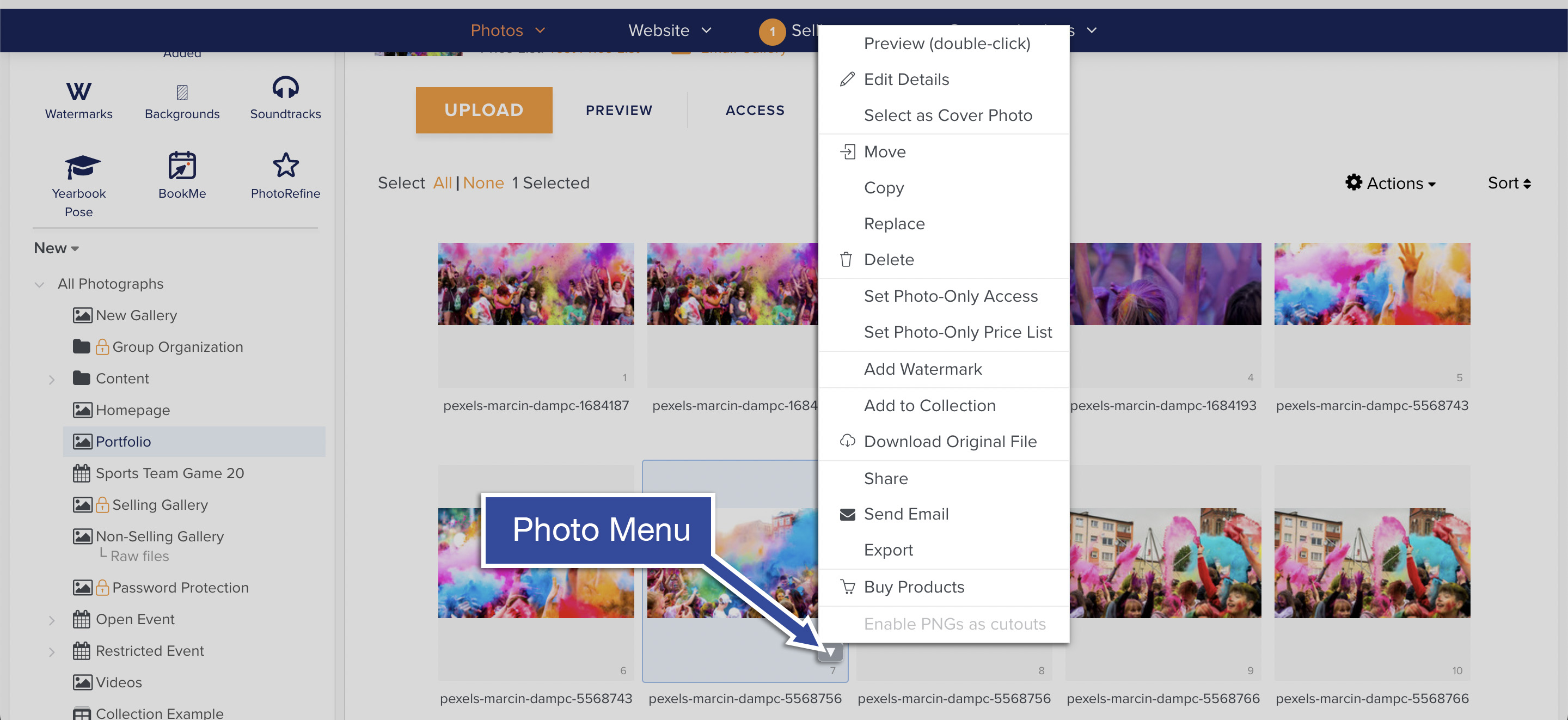
Multiple Item Selection
Many tasks, such as deleting, moving, and editing descriptions, can be performed on multiple items at the same time. This is also known as batch processing.
Continuous selection using the Shift key:
- In the Organizer, click to select the gallery containing the photographs you would like to select or double-click the gallery in the Main Area. Thumbnails of the photos from the gallery will load in the Main Area and the title of the gallery will be selected.
- In the Main Area, click to select a thumbnail of the first photo to be included in the continuous selection. While holding down the Shift key on your keyboard, click to select a thumbnail of the last photo to be included in the continuous selection. All photos located between the selected items will be included in your selection.
Selecting multiple photographs using the Control key (Command key on Mac OS X):
- In the Organizer, click to select the gallery containing the photographs you would like to select or double-click the gallery in the Main Area. Thumbnails of the photos from the gallery will load in the Main Area and the title of the gallery will be selected.
- In the Main Area, click to select a thumbnail of the first photo to be included in the selection. While holding down the Ctrl key on your keyboard (Command key on Mac OS X), click to select additional photos to be included in the selection. You can continue adding to your selection until you select all the desired photos.
Selecting all of the photographs in a gallery
You can also select all of the photos in the gallery at once so you can apply a Photo Action to all of the photos in the gallery. This will allow you to do things like Copy or Move all of the photos from one gallery to another.
You can find the link to select all of the photos in the gallery in the area to the top left of the photo thumbnails.