The pages displayed in the Website View of the site is customization. The photographer is able to choose different Presets, Themes, Layouts and Options to customize the looks of their site.
This guide covers:
- Website page types
- Customizing the Homepage
- Customizing Gallery/Collection page
- Customizing Group page
- Customizing Photo page
- Customizing Shopping Cart Theme
- Creating a custom page Theme
- Customizing the Site Menu
- Saving default settings by page type
- Site Settings
- Uploading and linking to PDF documents
- Soundtracks
- Website View functions
- Using your own Domain Name
- Locate and Preview Built-in Pages
- Creating Custom Pages
One of the most popular Zenfolio features is the ability to customize the Website View of any page to reflect the style and subject of the photographer. These easy but powerful customizations can change the way pages look including layout, navigation controls, fonts, and colors.
Website pages are what people see when they come to view your photographs. The website view of each page type is customized separately.
To customize this page from Website View, move your mouse pointer over the Edit link to view the drop down menu at the top of any page. Then choose Layout, Page Options or Site Settings to go to those areas in Customize Website View.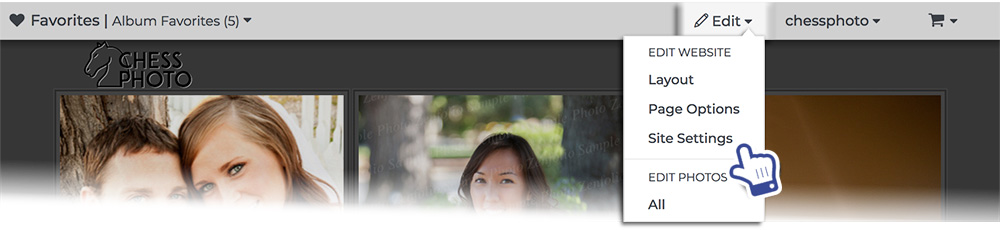
Note: you must be logged to your Zenfolio account to see the Edit menu and to Customize your site.
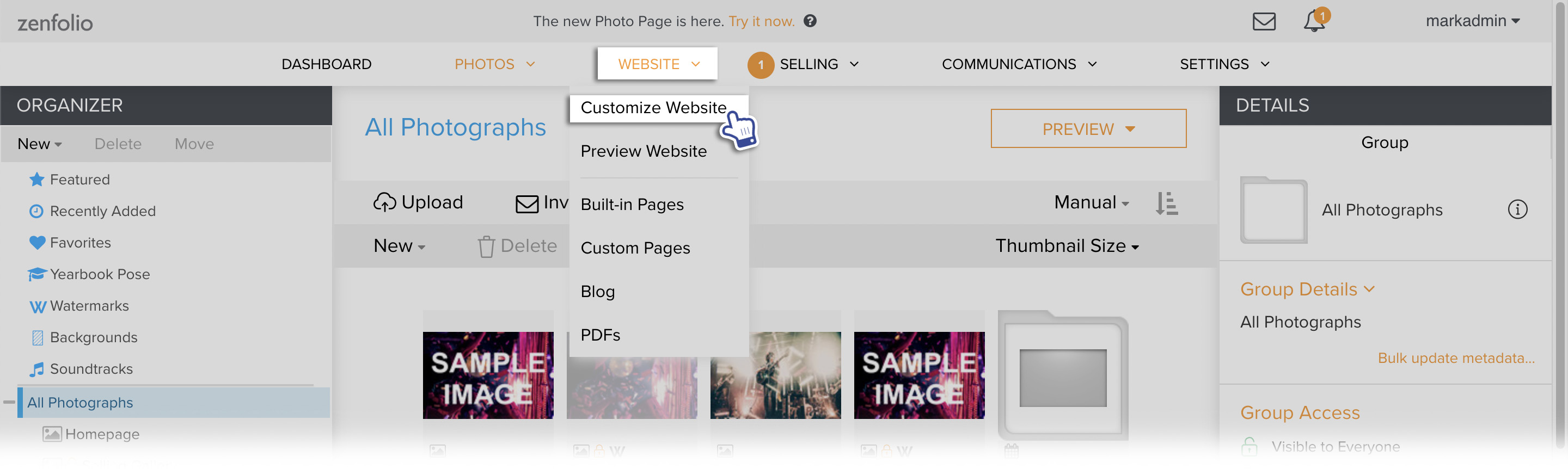
Customize Website View can also be accessed from the Dashboard.
In the Dashboard, hover your mouse pointer over Website then click on Customize Website.
The page will refresh with a new customization menu at the top, confirming that you are in the Customize Website View.
To access the Customize Website View of other built in pages such as the About page, Contact page, Client Access page, etc., see this guide.
The Customization Tools Found in Customize Website View
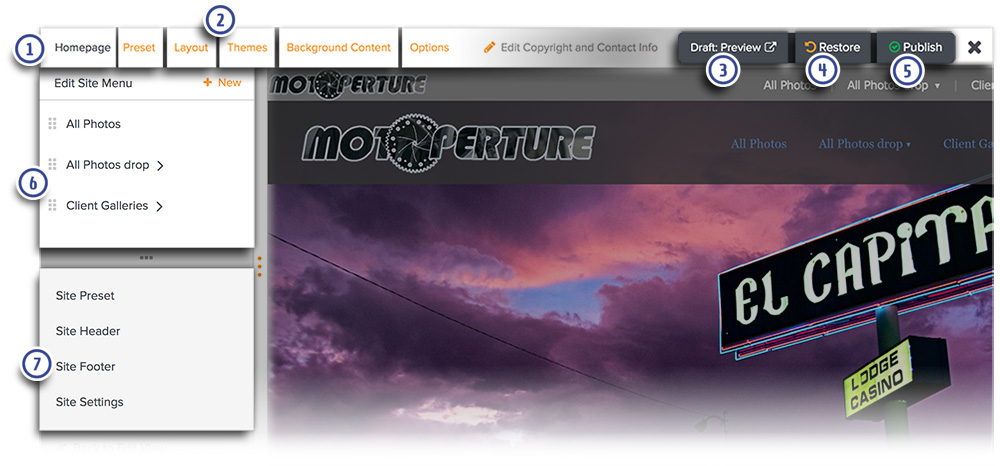
- The page type of the page currently being customized is displayed in the top left corner. Other page types include Gallery Thumbnails page, Gallery Photo Page, Blog Post Page. etc.
- The main customization tools Presets, Themes, Layouts, and Options are displayed across the top. Depending on the layout applied to the page, page content options such as Background Content, Spotlight Content, Grid Content and Banner Content are also displayed here. Please see below for more details.
- Click Draft:Preview to see a Preview of the current customization settings in Customize Website View without the customization tools displayed on the page.
- Click Restore to undo the last Published changes.
- Click Publish to apply the customization settings in Customize Website View to the live website view of the site. Note: Not all changes to your account will need to be published. If the Publish button is 'inactive' this indicates that there are no changes that require publishing.
- The contents of the Site Menu are edited in the Edit Site Menu section.
- The customization tools that affect the entire site are displayed in the Site tools section. These tools are Site Preset, Site Header, Site Footer and Site Settings.
- The Presets can apply a preset combination of themes, layouts and options to the page. This is the fastest way to customize the looks of the site. You can apply a Preset to your entire site by going to Site Presets or go to Preset to apply a preset to just the page that is currently being viewed in Customize Website View.
Once you've selected a preset, you can further customize the page by selecting different themes, layouts and options.
- Themes control the colors and fonts used on the page. You can apply any pre-made theme or create your own custom theme.
- Layouts control the placement of different elements on the page.
- Options allow you to show or hide various elements on the page. This is used to further fine tune the site based on the Preset or Layout applied to the page.
- See this guide for more details on how to apply Presets, Themes, Layouts and Options.
- The page content section displays content options such as Background Content, Spotlight Content, Grid Content and Banner Content. These are used to control the media content displayed on the page like the slideshow, Photo Strip or Banner content.
- See this guide for more details on editing the Site Menu.
- See this guide for more details on editing the Site Header or Site Footer.
- See this guide for more details on Site Settings.
Experimenting in Customize Website View
Feel free to experiment with different combinations of preset, themes, layouts and options.
Any changes that you make in Customize Website View are not applied to your actual site until you click Publish.
If you do not like the changes that you've made, click X then choose Discard.
If you've published your changes but you do not like the changes, click Restore to undo the last set of changes that were Published.
See this guide for more details on Restore and Publish.