There are two modes to view photos and video in the Photos page of your account. There is Thumbnail mode and Single Photo Mode.
What does your Account look like?
Click on the image that matches your view for instructions specific to your interface.
Original Photos Page:
Thumbnail Mode
The Thumbnails mode in the Dashboard shows many thumbnails in the Main Area. This is the default mode of the gallery when it is selected.
The Thumbnails mode is best suited for sorting and ordering photos and video, performing batch operations on multiple selected photos such as rotating, and editing photo related description. The number of thumbnails displayed on your screen depends on the size of the web browser window and the screen resolution. You should always maximize the size of your web browser window to take advantage of the available screen space.
To switch to Thumbnails mode, click the Thumbnails button on the right side of the Section Menu.
Use the Thumbnail Size slider to adjust the size of the thumbnails.
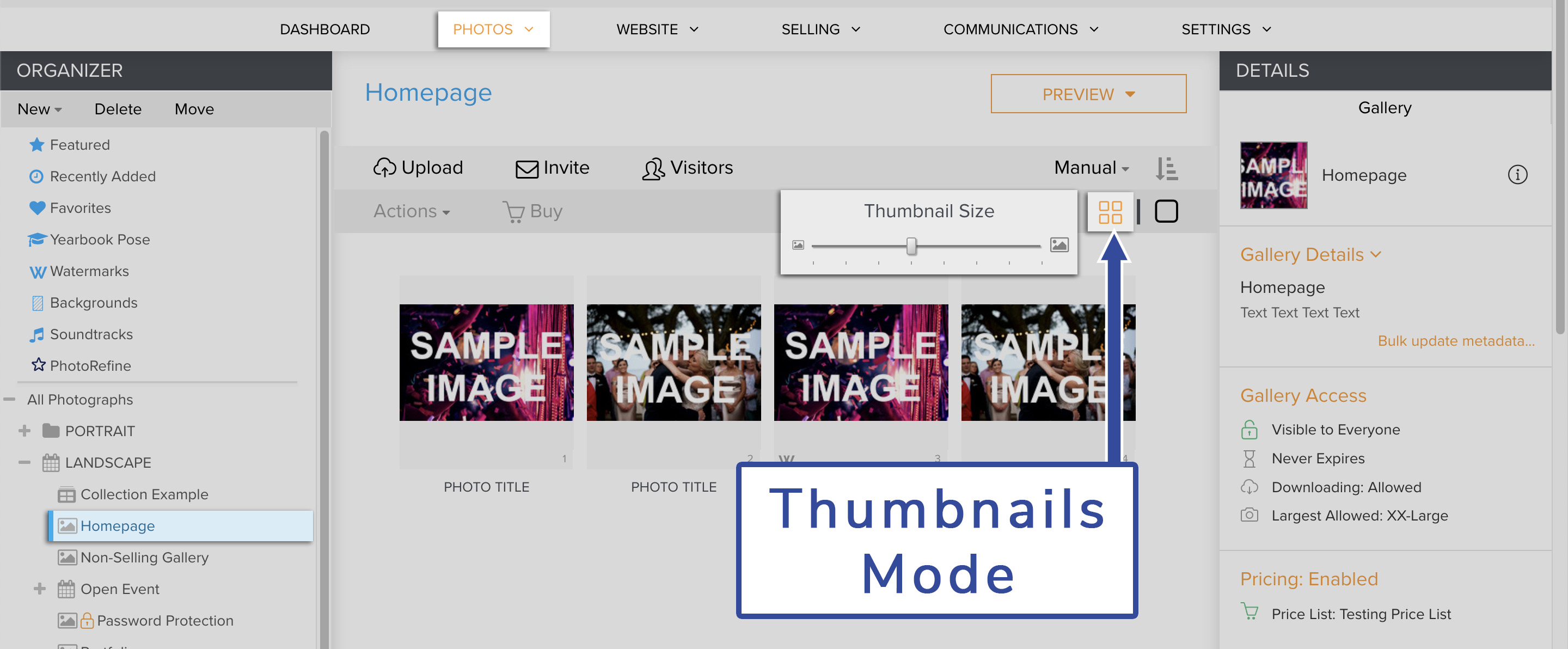
It is also easy to access the Photo Menu in this mode while moving your mouse over thumbnails and clicking on the blue down-pointing arrow that appears. The Photo Menu gives you quick access to common tasks.
Single photo mode
The Single Photo mode shows one large photograph or video at a time in the Main Area.
To switch to the Single Photo mode, select the thumbnail of the photograph or video you would like to see in the Main Area and click the Single Photo button on the right side of the Section Menu. An easier way to switch to Single Photo mode is by double-clicking the thumbnail of the photograph or video you would like to see in the Main Area.
This mode is best suited for reviewing photographs and making photo-editing manipulations, or for playing video. The size of the image displayed depends on the size of the Web browser window and your screen resolution. You should always maximize the size of your Web browser window to take advantage of the available screen space.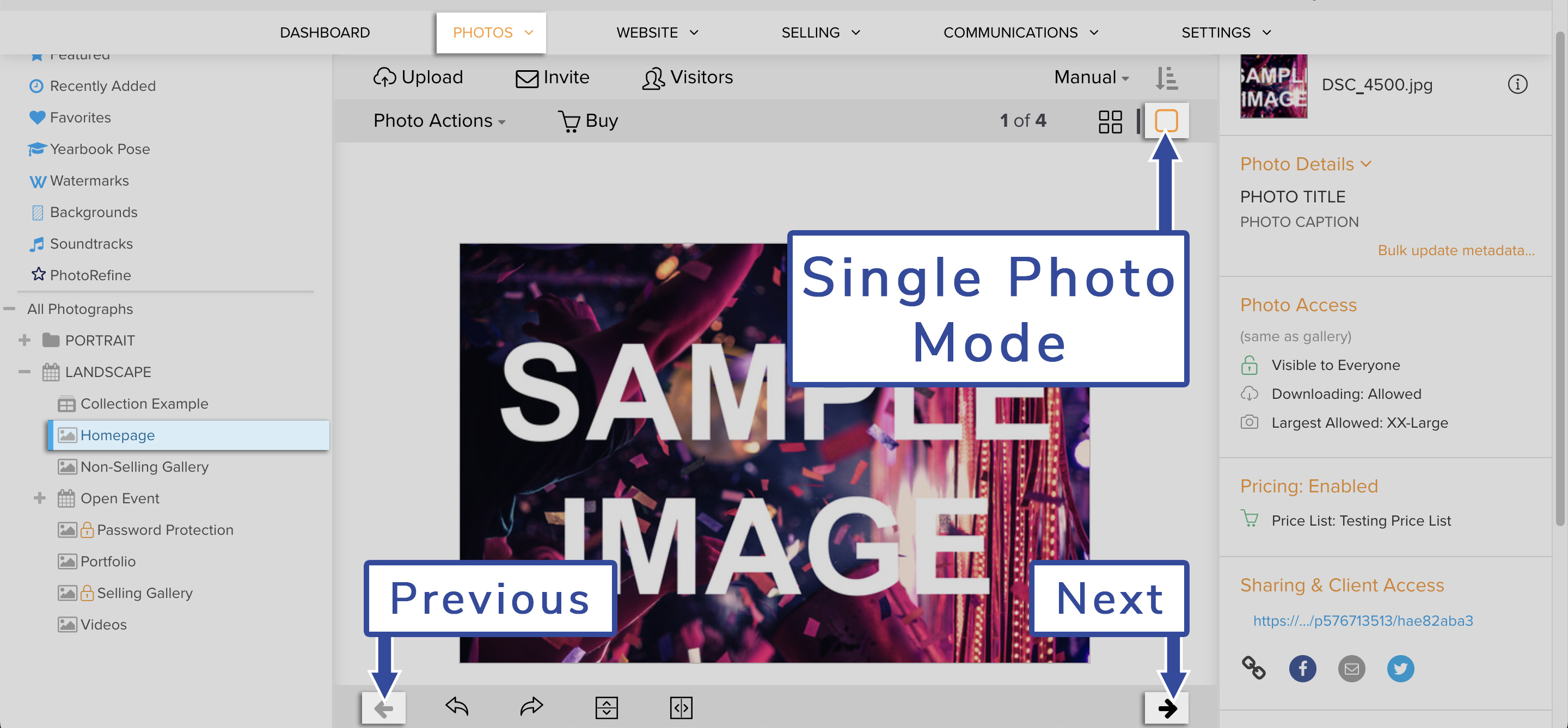
To navigate photos in the Single Photo mode, use the Next and Previous buttons in the Bottom Menu of the Main Area.
New Photos Page:
Thumbnail Mode
The Thumbnails mode in your account shows many thumbnails in the Main Area. This is the default mode of the gallery when it is selected.
The Thumbnails mode is best suited for sorting and ordering photos and video, performing batch operations on multiple selected photos such as rotating, and editing photo related description. The number of thumbnails displayed on your screen depends on the size of the web browser window and the screen resolution. You should always maximize the size of your web browser window to take advantage of the available screen space.
Use the Thumbnail Size selector to adjust the size of the thumbnails.
It is also easy to access the Photo Menu in this mode while moving your mouse over thumbnails and clicking on the grey down-pointing arrow that appears. The Photo Menu gives you quick access to common tasks like copy, move, delete, and download.
Single photo mode
The Single Photo mode shows one large photograph or video at a time in the Main Area.
To switch to the Single Photo mode, double-click on the thumbnail of the photograph or video you would like to see in the Main Area.
This mode is best suited for reviewing photographs and making photo-editing manipulations, or for playing video. The size of the image displayed depends on the size of the Web browser window and your screen resolution. You should always maximize the size of your Web browser window to take advantage of the available screen space.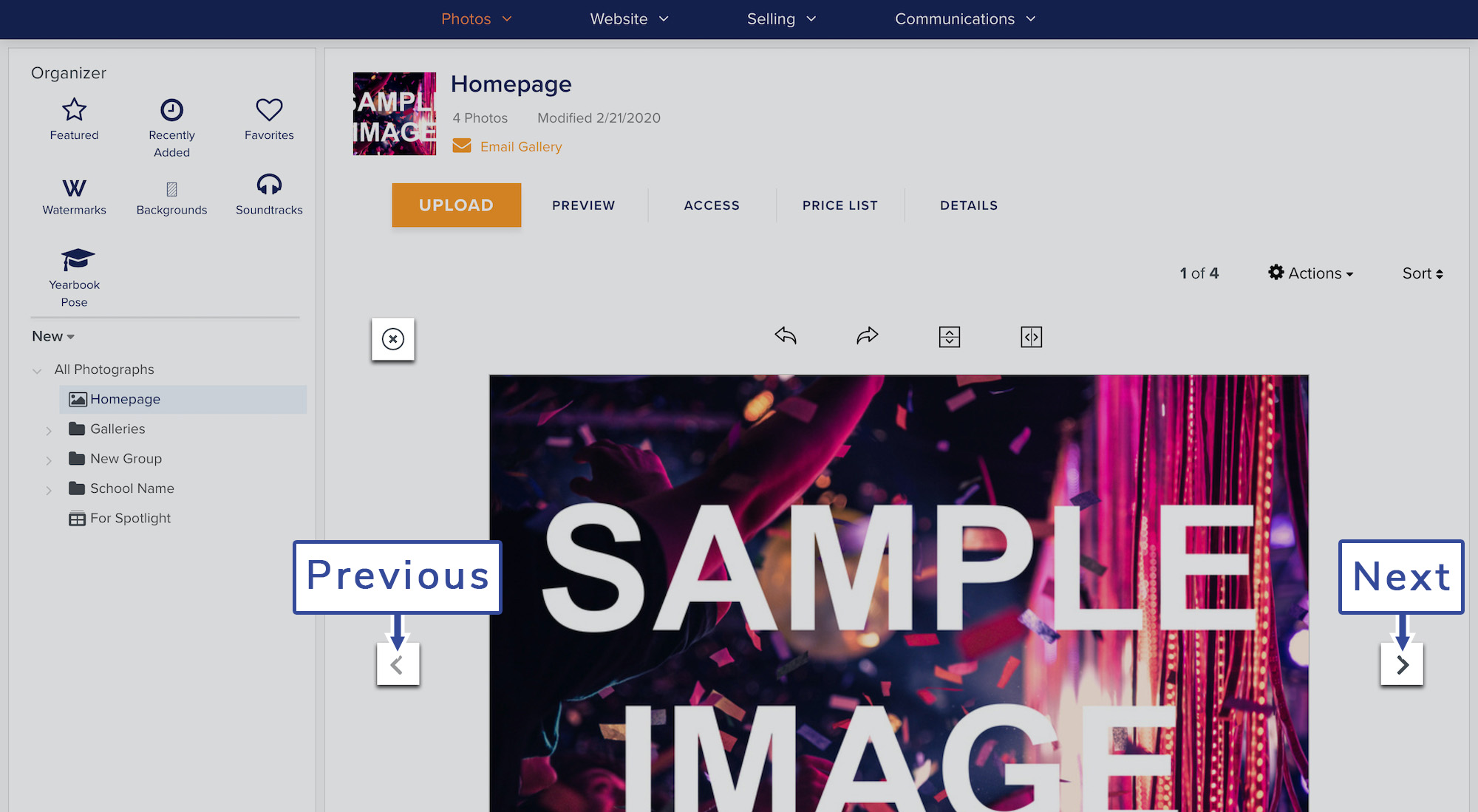
To navigate photos in the Single Photo mode, use the Next and Previous directional buttons to the left and right of the photo.
You may also exit the Single Photo mode by clicking on the X icon to the upper left of the photo.